Work in a terminal
Copy and paste, learn which keys reach your shell, open links and files, and set up scrollback, notifications, and the context bar.
A Termul terminal works like the terminal you already use. This page covers the parts that are specific to Termul.
Copy and paste
- Copy. Select text with the mouse, then press
Ctrl+C(Cmd+Con macOS). - Paste. Press
Ctrl+V(Cmd+Von macOS). - Select everything. Press
Ctrl+A(Cmd+Aon macOS).
Ctrl+C copies only when text is selected. With nothing selected, Ctrl+C goes to the program, so it stops the running command as usual. On macOS, Ctrl+C always stops the command, and Cmd+C copies.
Selecting text doesn't copy it. Use Ctrl+C or the right-click menu.
In the desktop app, if the clipboard holds an image, Ctrl+V passes the key on to the program instead of pasting text. Command-line tools that read images from the clipboard, such as AI coding agents, can then pick up the image.
Right-click menu
Right-click in a terminal to open its menu. Right-clicking also selects the word under the pointer.
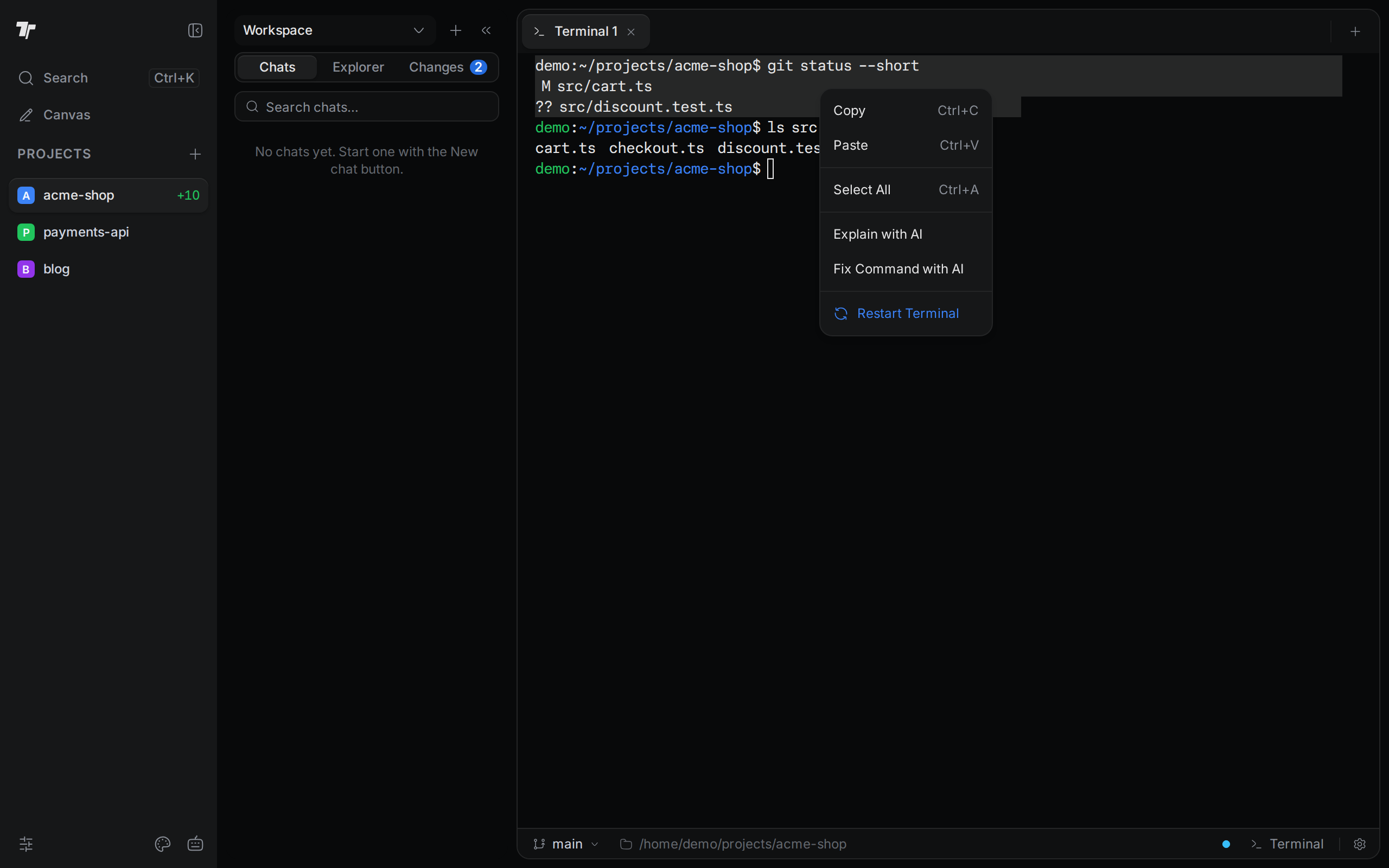
Copy, Explain with AI, and Fix Command with AI need selected text. For the two AI actions, see Ask AI about terminal output.
If you open Termul in a browser over plain http:// from another computer, the browser blocks clipboard access. Paste in the menu then does nothing, but Ctrl+V still pastes.
Keys that don't reach your shell
Most keys go straight to your shell, including Tab for completion and readline keys such as Ctrl+E, Ctrl+P, Ctrl+L, and Ctrl+D. Termul's own shortcuts come first, though, even when a terminal has focus.
Windows and Linux desktop app
These keys don't reach your shell:
| Key | What happens instead |
|---|---|
Ctrl+A | Selects all terminal text. |
Ctrl+B | Nothing. |
Ctrl+C | Copies, if text is selected. With no selection, the shell gets it. |
Ctrl+F | Nothing. Termul has no terminal search. |
Ctrl+K | Opens the command palette. |
Ctrl+N | Opens the new project dialog. |
Ctrl+R | Opens the Command History window instead of your shell's history search. |
Ctrl+S | Nothing in the terminal. Termul keeps this key for saving files. |
Ctrl+T | Opens the agent launcher. |
Ctrl+U | Nothing. |
Ctrl+V | Pastes. |
Ctrl+W | Closes the tab. |
Ctrl+=, Ctrl+-, Ctrl+0 | Zooms the whole window. |
Ctrl+, | Opens Settings. |
Delete, F2 | Nothing. These keys are the shortcuts for Delete Files and Rename File in the Explorer. To delete the character under the cursor, press Ctrl+D instead. |
Termul also uses some Ctrl+Shift and Ctrl+Alt keys, such as Ctrl+Shift+P for the command palette and Ctrl+Alt+T for the theme picker. Settings > Keyboard Shortcuts lists them all.
macOS
Termul's shortcuts use Cmd, so your shell gets the Ctrl keys. A few keys still don't reach the shell. Delete (the forward-delete key) and F2 do nothing, as on Windows and Linux. In the desktop app, Ctrl+U also does nothing.
In a browser
The browser version moves some shortcuts to Alt, because browsers keep keys such as Ctrl+W and Ctrl+T for themselves. For example, Close Tab is Alt+W and the agent launcher is Alt+T.
In a browser, these keys don't reach your shell:
Ctrl+A,Ctrl+B,Ctrl+Cwith a selection,Ctrl+F,Ctrl+K,Ctrl+S, andCtrl+V, as in the table above.DeleteandF2.- The
Ctrl+ShiftandCtrl+Altshortcuts, as in the desktop app. - The
Altshortcuts:Alt+N,Alt+T,Alt+W,Alt+PageUp,Alt+PageDown,Alt+=,Alt+-,Alt+0, andAlt+,.
Termul doesn't bind Ctrl+R or Ctrl+U in a browser, so your shell gets them. Your browser may keep Ctrl+W, Ctrl+T, and Ctrl+N before Termul or the shell sees them.
Give a key back to your shell
To free a key that Termul uses as a shortcut, open Settings, select Keyboard Shortcuts, and record a different key combination for that shortcut. For example, record another key for Delete Files to get Delete back. You can't remove a shortcut. Ctrl+A, Ctrl+C, Ctrl+V, and Ctrl+U aren't in the list, so you can't give them back.
Shift+Enter
Shift+Enter sends a line feed, the same as Ctrl+J. AI coding agents that run in a terminal, such as Claude Code, use it to start a new line in a prompt without sending it. A plain shell treats it like Enter and runs the command.
Open links and files from the output
Hold Ctrl (Cmd on macOS) and click a web address or a file path in the terminal. A plain click does nothing.
- Web addresses. Termul opens
httpandhttpslinks. Other kinds of links show an error message. - File paths. Termul opens the file in its editor. If the file is already open, Termul switches to its tab. If the path ends in a line number, such as
src/cart.ts:12,src/cart.ts:12:5, orsrc/cart.ts#L12, the editor jumps to that line.
A file path needs at least one / or \. A bare name such as cart.ts:12 is not a link. Termul looks up a relative path from the terminal's folder and from the project folder. The file must be inside one of those folders.
To choose where web links open:
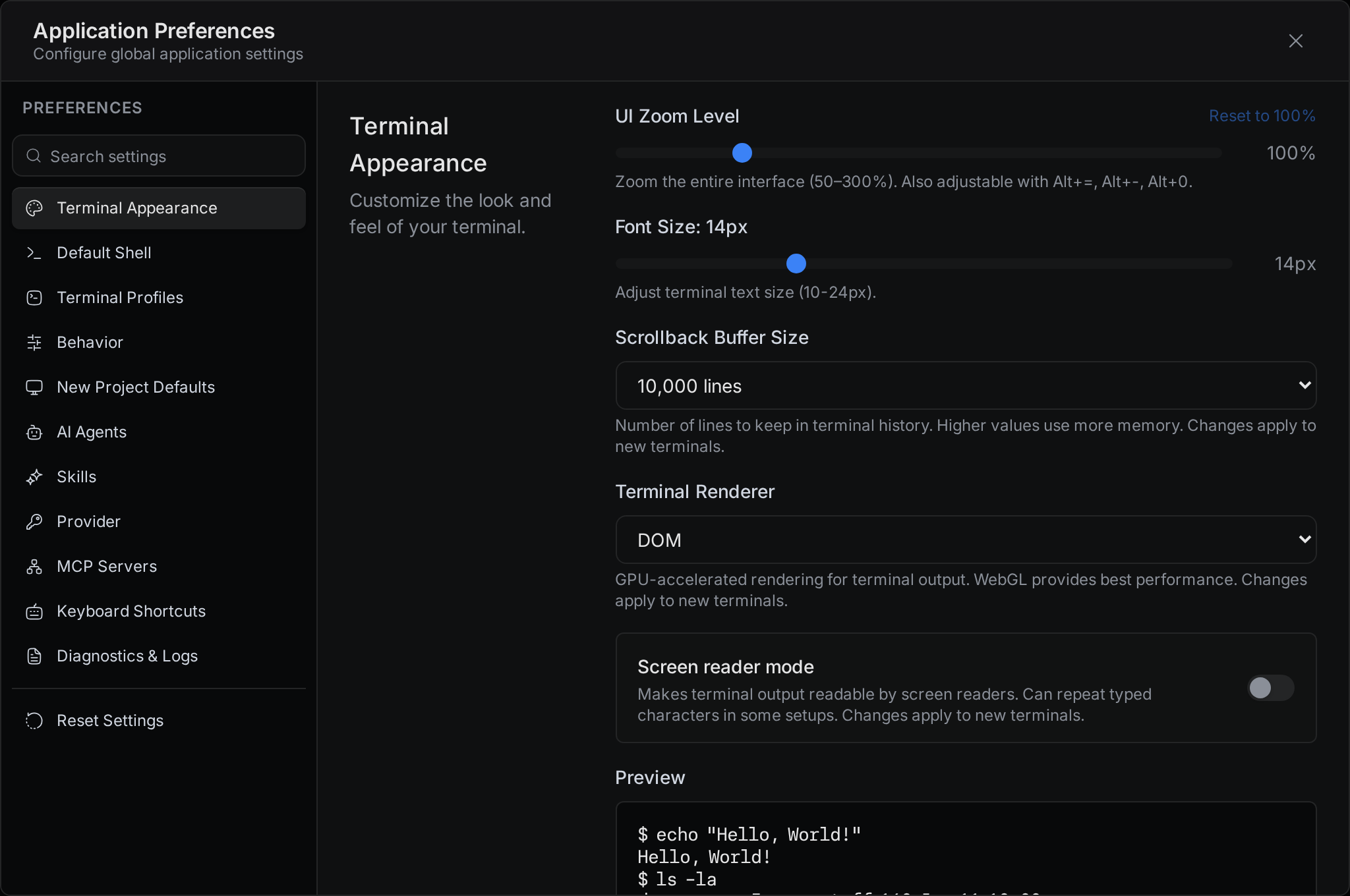
- Open Settings and select Behavior.
- In Open Terminal Links In, choose System Default Browser or Termul Browser.
System Default Browser is the default. Termul Browser opens the link in a browser tab inside Termul, which only the desktop app has. In a browser, keep System Default Browser. Termul then opens the link in a new browser tab.
Change the look and the scrollback
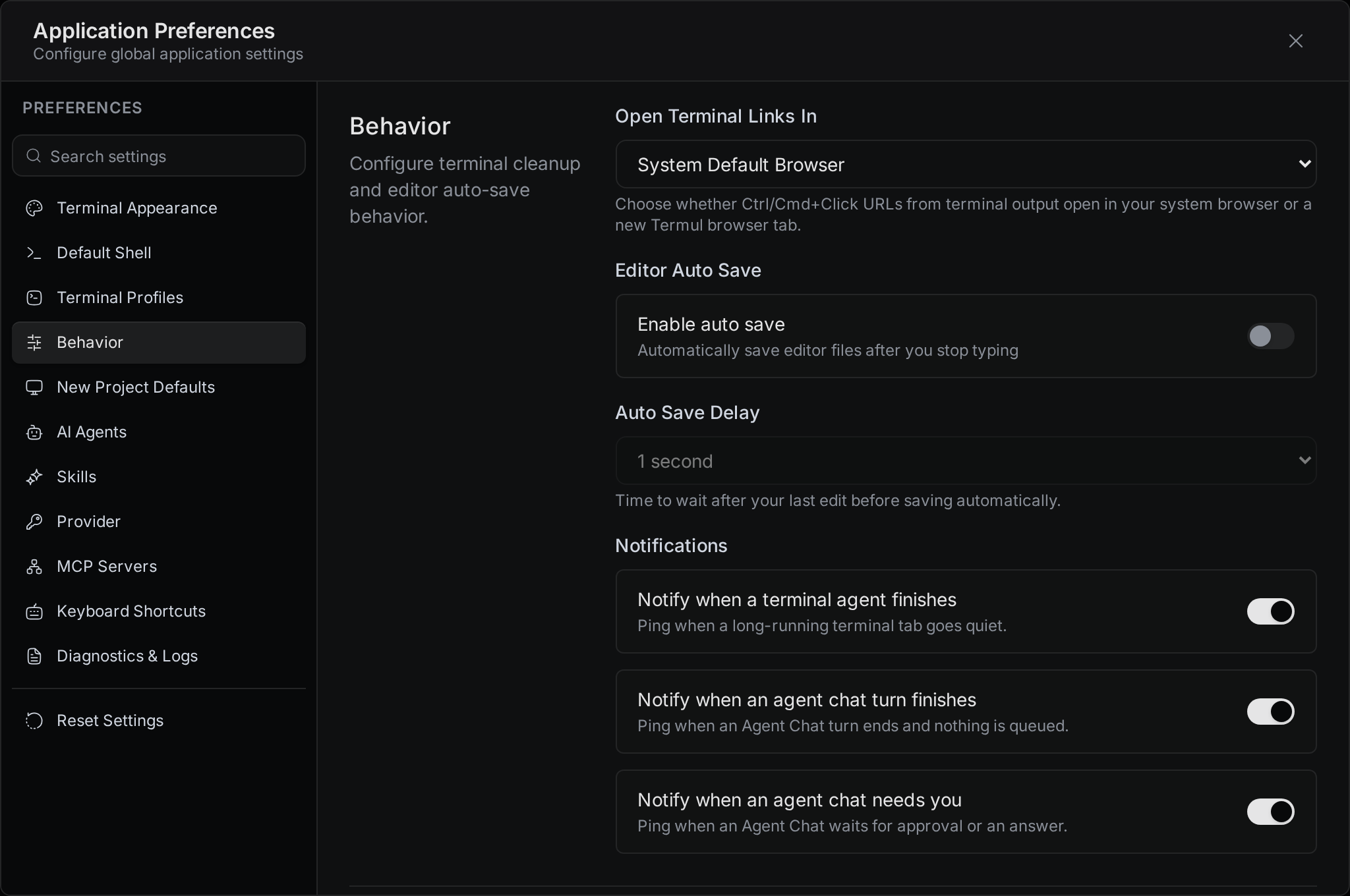
Open Settings and select Terminal Appearance.
- Font Size sets the terminal text size, from 10 to 24 pixels. The default is 14, and open terminals change right away.
- Scrollback Buffer Size sets how many lines each terminal keeps for scrolling back: 1,000, 5,000, 10,000, 25,000, or 50,000. The default is 10,000. More lines use more memory.
- Terminal Renderer picks how terminals draw text. Auto is the default and uses your graphics card when it can. The other options are WebGL and DOM. Try DOM if text looks wrong.
- Screen reader mode makes terminal output readable by screen readers. It is off by default.
Scrollback and screen reader changes apply to terminals you open after the change.
Get notified when a long task finishes
Termul can tell you when a long-running terminal goes quiet, for example when a build or an AI agent finishes. The setting is Notify when a terminal agent finishes, under Behavior > Notifications in Settings. It is on by default.
A terminal counts as finished when it printed output for at least 20 seconds and then stayed quiet for 8 seconds. Termul doesn't notify you about the terminal you are looking at while the Termul window has focus. The notification shows the project name and says that the terminal's agent finished.
Termul also notifies you when the shell in a terminal exits, for example after you type exit. The message says DONE, or Failed with the exit code. This notification has no setting. Termul doesn't send it for terminals that you close yourself.
In a browser, Termul uses browser notifications, and the browser asks for permission the first time. Select a notification to go to that terminal. In the desktop app, these are system notifications. Selecting one brings the Termul window to the front.
When a terminal you aren't looking at finishes, its pane also gets an amber outline. The outline goes away when you click in the pane or type in it.
Command history
The Command History window is meant to list commands you ran in Termul terminals, so you can find one and insert it again.
Termul doesn't record new commands at the moment, so the window shows No command history yet. Use your shell's own history instead, for example the Up arrow key or the history command.
To open the window:
- In the desktop app, press
Ctrl+R(Cmd+Ron macOS). - In a browser, open the command palette and run Command History.
Ctrl+Rgoes to your shell there. - On a phone, select the ... button at the top of a terminal, then Command history.
The window has a search box and a filter for This Project or All Projects. If it lists commands from an older version of Termul, select one or press Enter to insert it at the prompt. Termul doesn't run it. Clear History deletes the list for the current project.
Choose what the context bar shows
The context bar runs along the bottom of the window. It shows facts about the active project and terminal. Its Terminal button opens a new terminal in the active folder.
To choose what the bar shows, select the gear icon at the right end of the bar (Context bar settings), then turn items on or off.
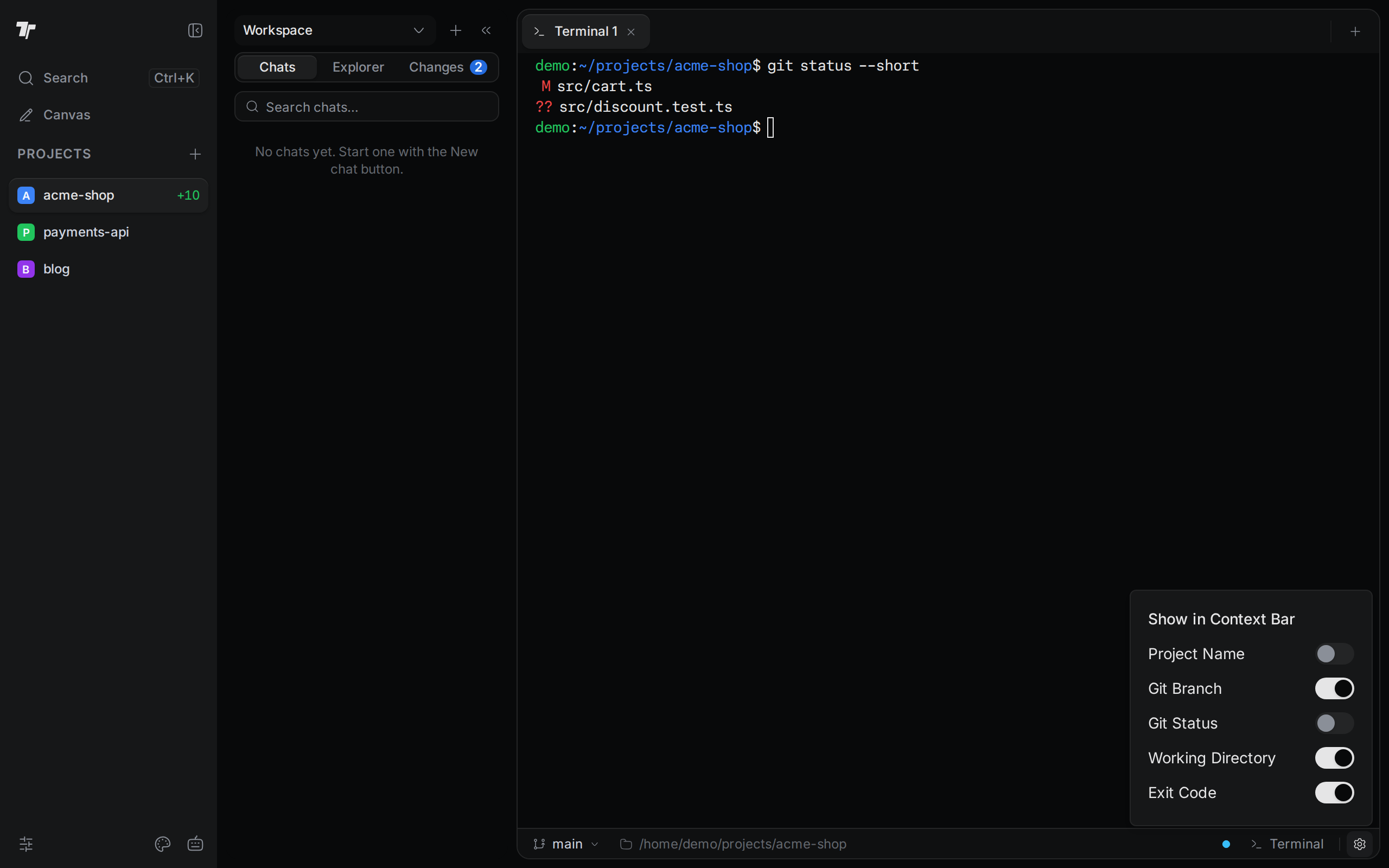
- Project Name shows the project's name. Off by default.
- Git Branch shows the current branch. Select it to switch to another branch or create one. On by default.
- Git Status shows how many files are modified, staged, and untracked, when there are any. Off by default.
- Working Directory shows the active project or worktree folder. On by default.
- Exit Code shows whether the last command in the active terminal succeeded. On by default. It appears only if your shell reports exit codes to the terminal. Many shells don't do this unless you set up shell integration.
Termul saves your choices with your settings. Every browser and phone that connects to the same Termul uses them.
Use a terminal on your phone
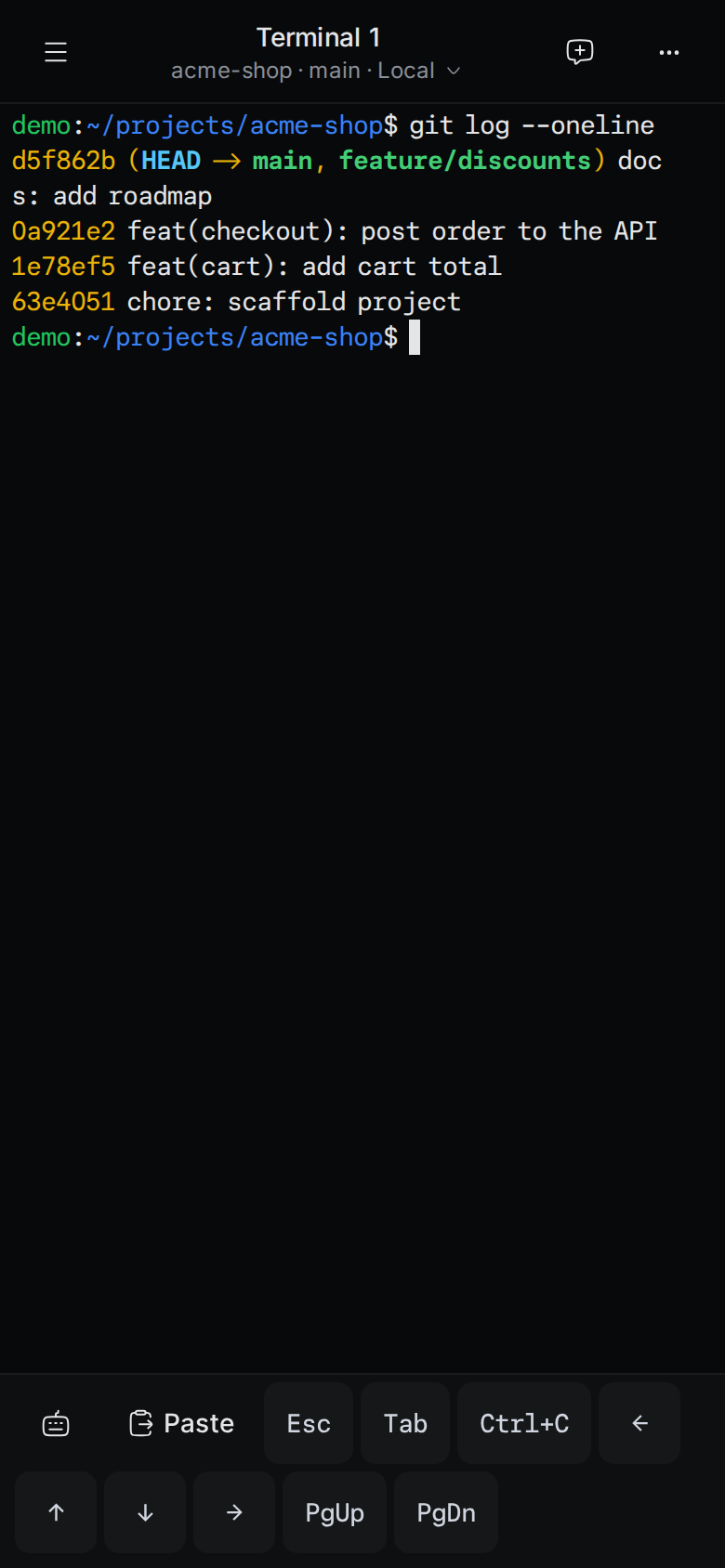
When you open Termul in a phone browser, open the menu, select Terminals, and select New terminal. A row of keys above the keyboard gives you the keys a phone keyboard lacks: Esc, Tab, Ctrl+C, the arrow keys, PgUp, and PgDn. It also has a Paste button. Select the keyboard icon at the start of the row to hide or show the keys. Paste stays visible.