Tabs and split panes
Rename, reorder, and close tabs, split the window into panes, and learn what keeps running.
Everything you open in a project is a tab: terminals, chats, files, Git views, the canvas, and browser tabs in the desktop app. Tabs live in panes. You start with one pane, and you can split it to see several tabs side by side.
On a phone, Termul shows one tab at a time and has no tab bar. This page is about the layout on a computer.
Work with tabs
- Switch tabs. Select a tab, or press
Ctrl+PageDownandCtrl+PageUpto move to the next or previous tab in the active pane. If the tabs don't fit, scroll the tab bar with your mouse wheel. - Rename a terminal. Double-click the terminal's tab, type a name, and press
Enter. PressEscto cancel. Only terminal tabs can be renamed. - Reorder tabs. Drag a tab along the tab bar. A line shows where it will land.
- Close a tab. Select the × on the tab, middle-click the tab, or press
Ctrl+W(Cmd+Won macOS,Alt+Win a browser). The shortcut doesn't close the canvas tab.
When you close a terminal, Termul ends the shell and anything running in it. By default it asks first, in a Close Terminal dialog. To stop the question, select Don't ask again when closing terminals in that dialog, then select Close. Settings has no switch to turn the question back on.
Tab menu
Right-click a tab to see more actions. The menu shows only the actions that apply to that kind of tab.
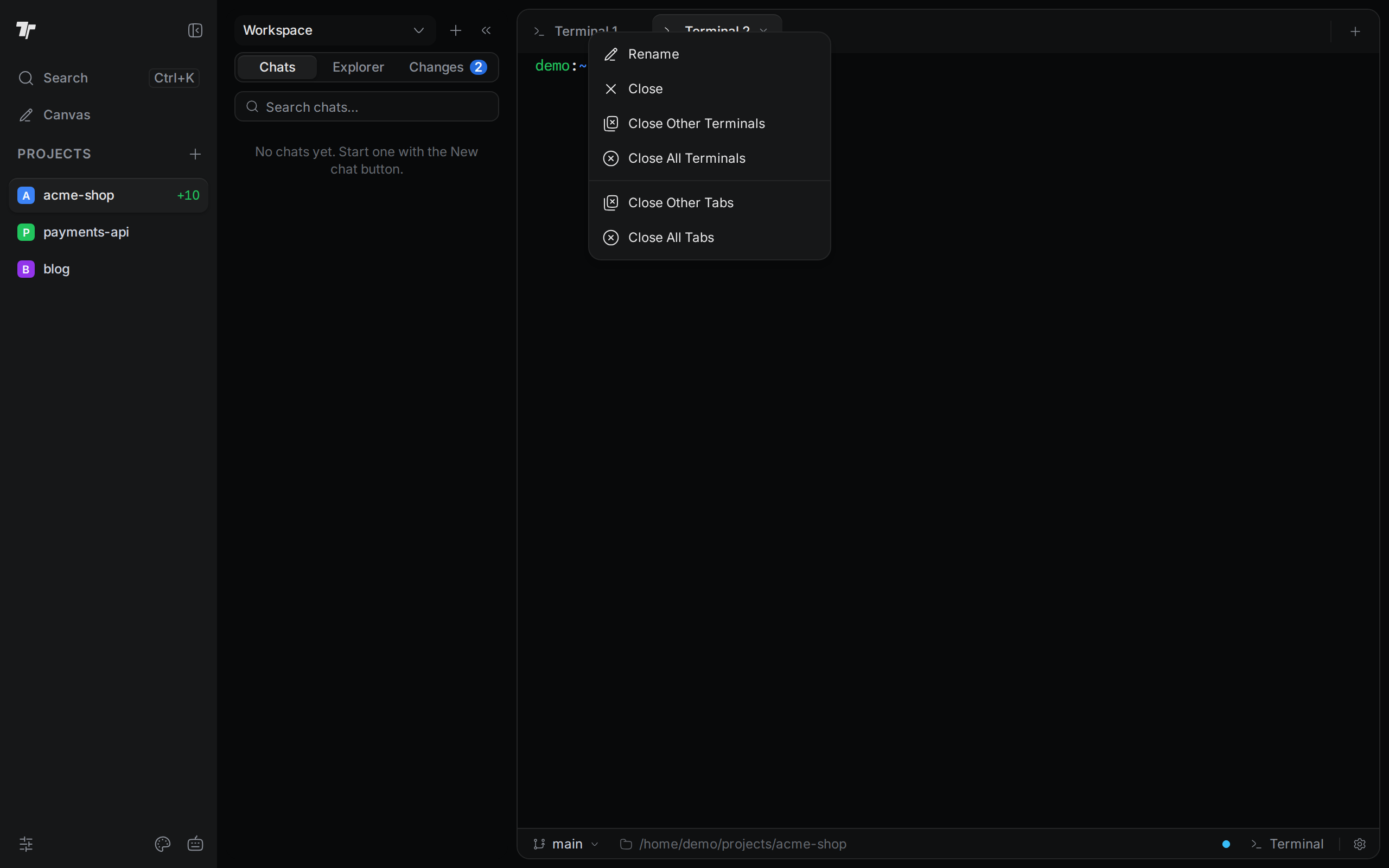
- Rename renames a terminal tab.
- Reload this chat reloads a chat tab.
- Close closes this tab.
- Close Other Terminals and Close All Terminals close tabs of the same kind in this pane. For a file tab the items say Editors, for a chat Agent Chats, and so on.
- Close Other Tabs and Close All Tabs close tabs of every kind in this pane.
- Copy Path copies the path of a file tab.
If the tabs you close include terminals or files with unsaved changes, Termul asks you to confirm in a Close Tabs dialog. For unsaved files you can pick Save & Close or Don't Save. If you turned off the terminal question, terminals close without it.
Split a pane
To split, drag a tab onto a pane.
- Drag a tab out of the tab bar and over a pane. The tab can come from any pane.
- Move toward an edge of the pane. A highlight shows where the tab will go.
- Release the tab.
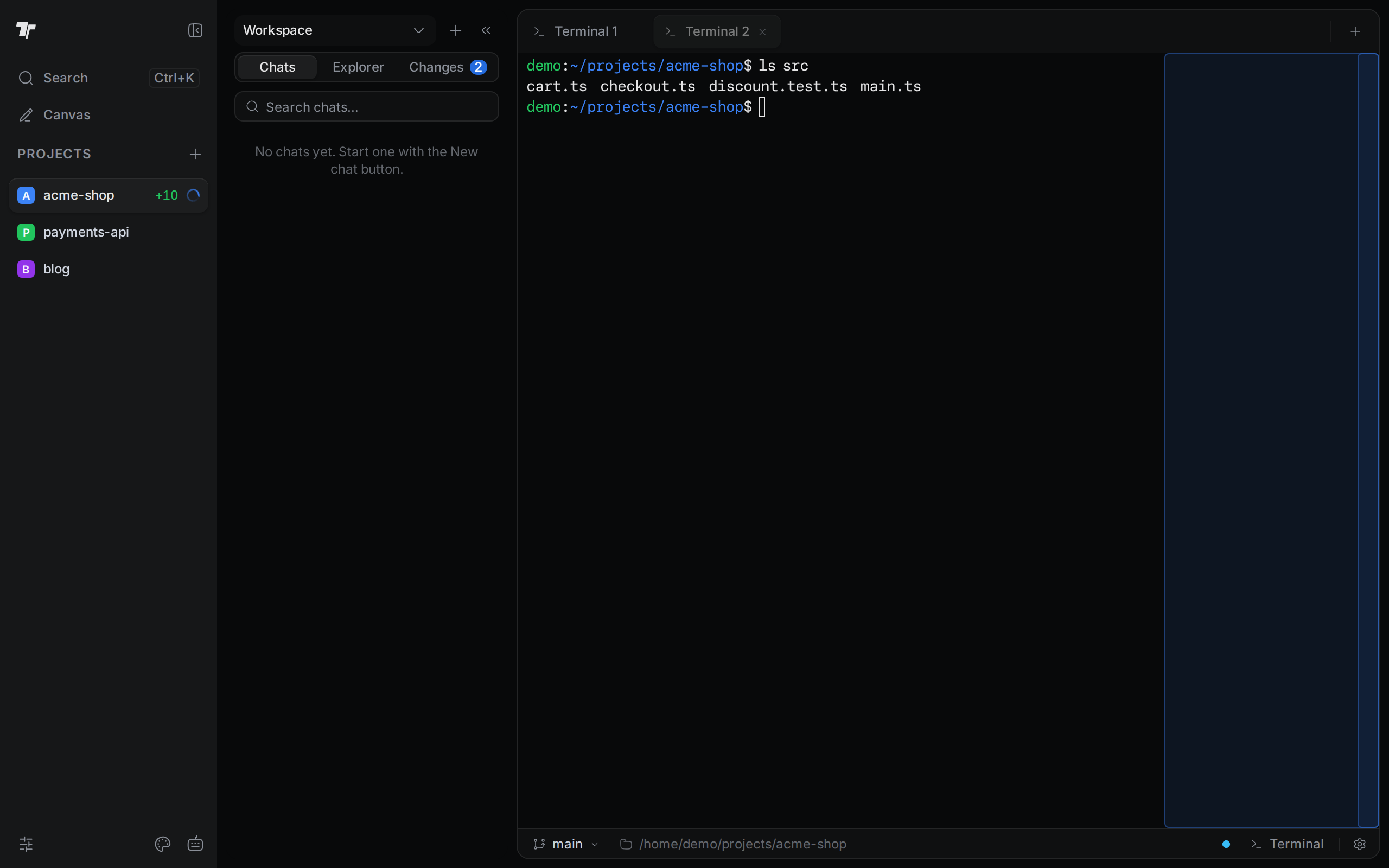
Drop the tab on the left or right edge to put the panes side by side. Drop it on the top or bottom edge to stack them. Drop it in the middle of a pane to move the tab into that pane without a split.
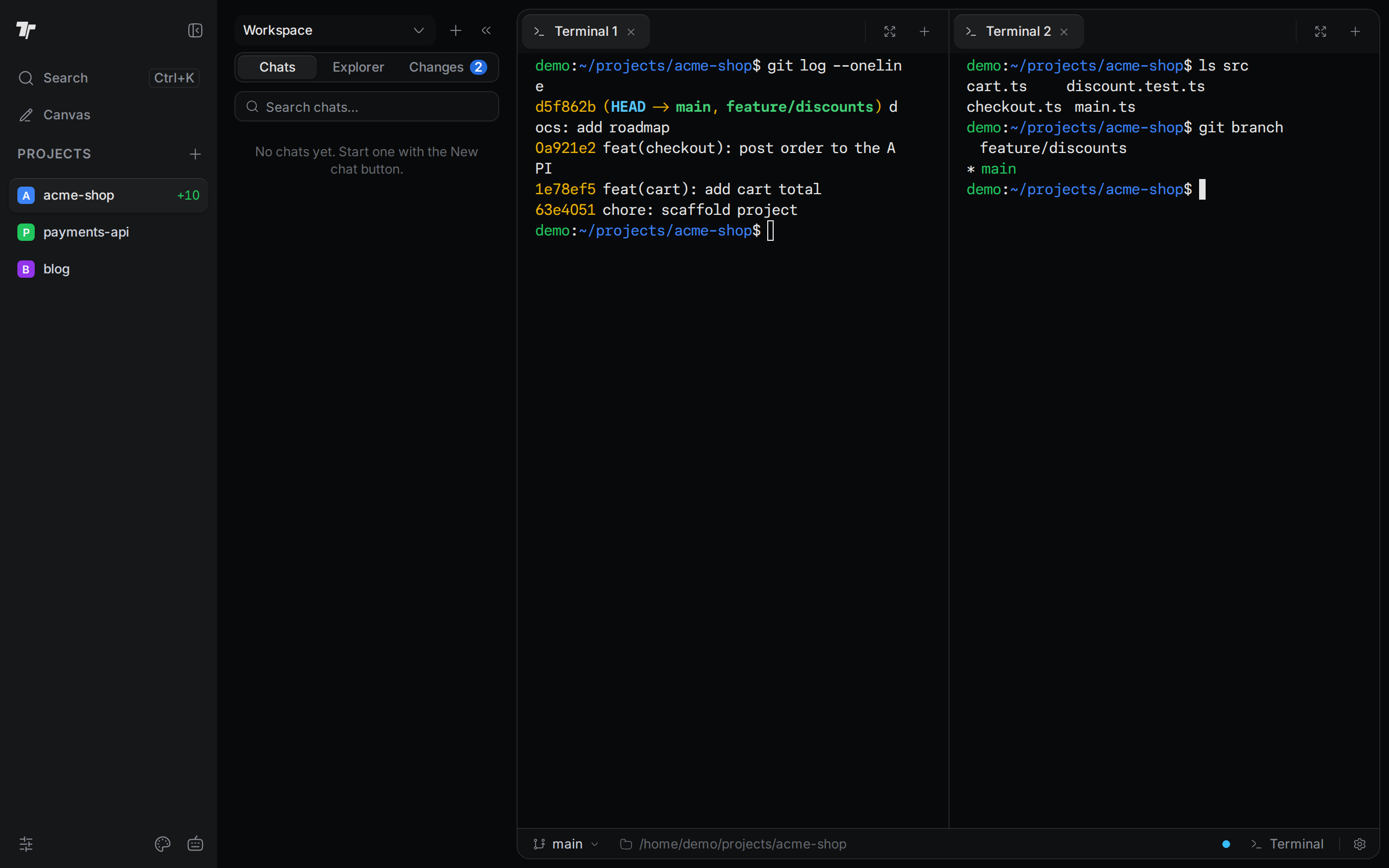
You can also drag a file from the Explorer or a chat from the Chats list onto a pane to open it in a split. To open a chat to the right of the active pane, right-click the chat in the Chats list and select Open in split.
There is no keyboard shortcut for splitting.
A new split shares the space equally among the panes in that row or column. To resize the panes, drag the line between them. Each pane has a minimum size.
Focus one pane
When you have two or more panes, each tab bar has a Focus pane button (a maximize icon) at the right. Select it to show only that pane. Select the same button again, now called Restore pane layout, to bring back the other panes.
Close a pane
A pane closes when you close or move its last tab. If it is the only pane, it stays open and shows the start screen. From there you can start a chat, or open a terminal from the + menu.
Keyboard shortcuts
These are the default shortcuts on Windows and Linux. On macOS, use Cmd where the table says Ctrl, in the desktop app and in a browser. To change a shortcut, open Settings and select Keyboard Shortcuts.
| Action | Desktop app | In a browser |
|---|---|---|
| Next tab | Ctrl+PageDown | Alt+PageDown |
| Previous tab | Ctrl+PageUp | Alt+PageUp |
| Close tab | Ctrl+W | Alt+W |
| New terminal in the active folder | Ctrl+Shift+Alt+T | Ctrl+Shift+Alt+T |
| Command palette | Ctrl+K | Ctrl+K |
The browser uses Alt for some shortcuts because browsers keep Ctrl+W and Ctrl+PageUp for their own tabs. In the desktop app, Ctrl+1 to Ctrl+9 switch between projects, not tabs.
What keeps running
Switching projects. Terminals keep running in the projects you leave. When you come back, the tabs, panes, and output are where you left them.
Closing the browser tab. If you use Termul in a browser, closing the tab doesn't stop your terminals. They keep running on the Termul server and still count toward the terminal limits. When you open Termul again in the same browser, your tabs come back and connect to the same running shells, with their output. Terminals stop only when you close them, when their shell exits, or when the server stops.
Closing the desktop window. On macOS and Linux, closing the window hides Termul in the system tray. Your terminals keep running. To quit, select Quit Termul in the tray menu. On Windows, closing the window quits Termul.
Quitting the desktop app. Quitting ends every terminal and the programs running in it. The next time you start Termul, it restores your panes and tabs. Each terminal comes back as a new shell with the same name, shell, and folder. The output that Termul saved last is shown above the new prompt. Programs that were running don't restart. Terminals that run an AI agent start the agent again.