Snapshots
Save the terminals of a project and bring them back later.
A snapshot saves the terminals of the active project: their names, shells, and folders. It also keeps the last 1,000 lines of output from each terminal, but a restore doesn't show that output. Restore a snapshot to get the same set of terminals back, for example after you closed them or switched to other work.
A snapshot doesn't save running programs, the split layout, or tabs that aren't terminals, such as chats and files. A terminal that runs an AI agent comes back as a plain shell.
Each project has its own snapshots. Termul also keeps snapshots per device. A snapshot you save on your phone doesn't appear in the browser on your computer, and the reverse.
Save a snapshot
- Open the command palette with
Ctrl+K(Cmd+Kon macOS). - Run Save Workspace Snapshot.
- Type a Snapshot Name. Add a Description (optional) if you want one.
- Select Create.
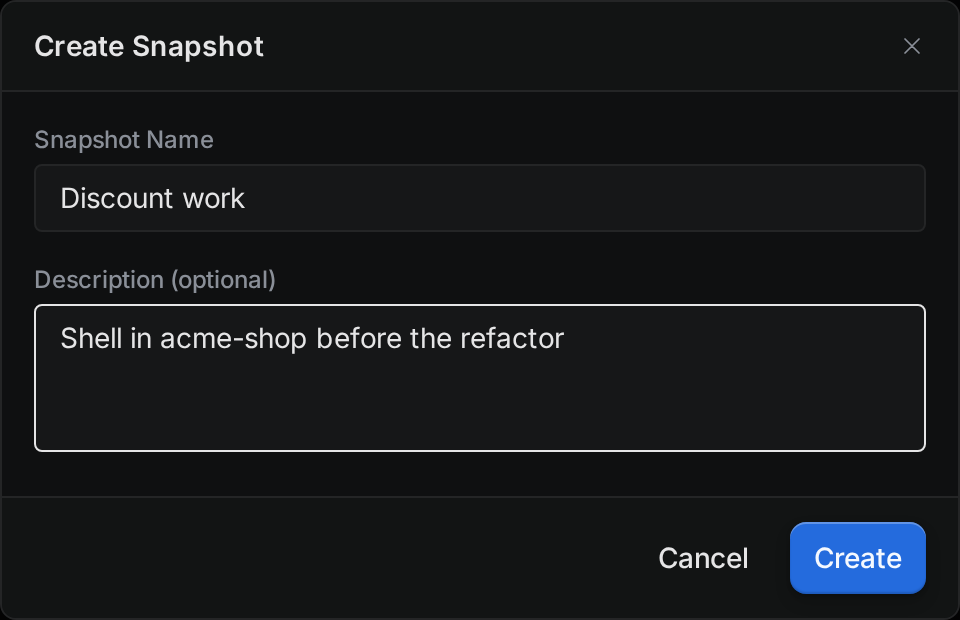
Termul saves the snapshot. It doesn't show a confirmation message.
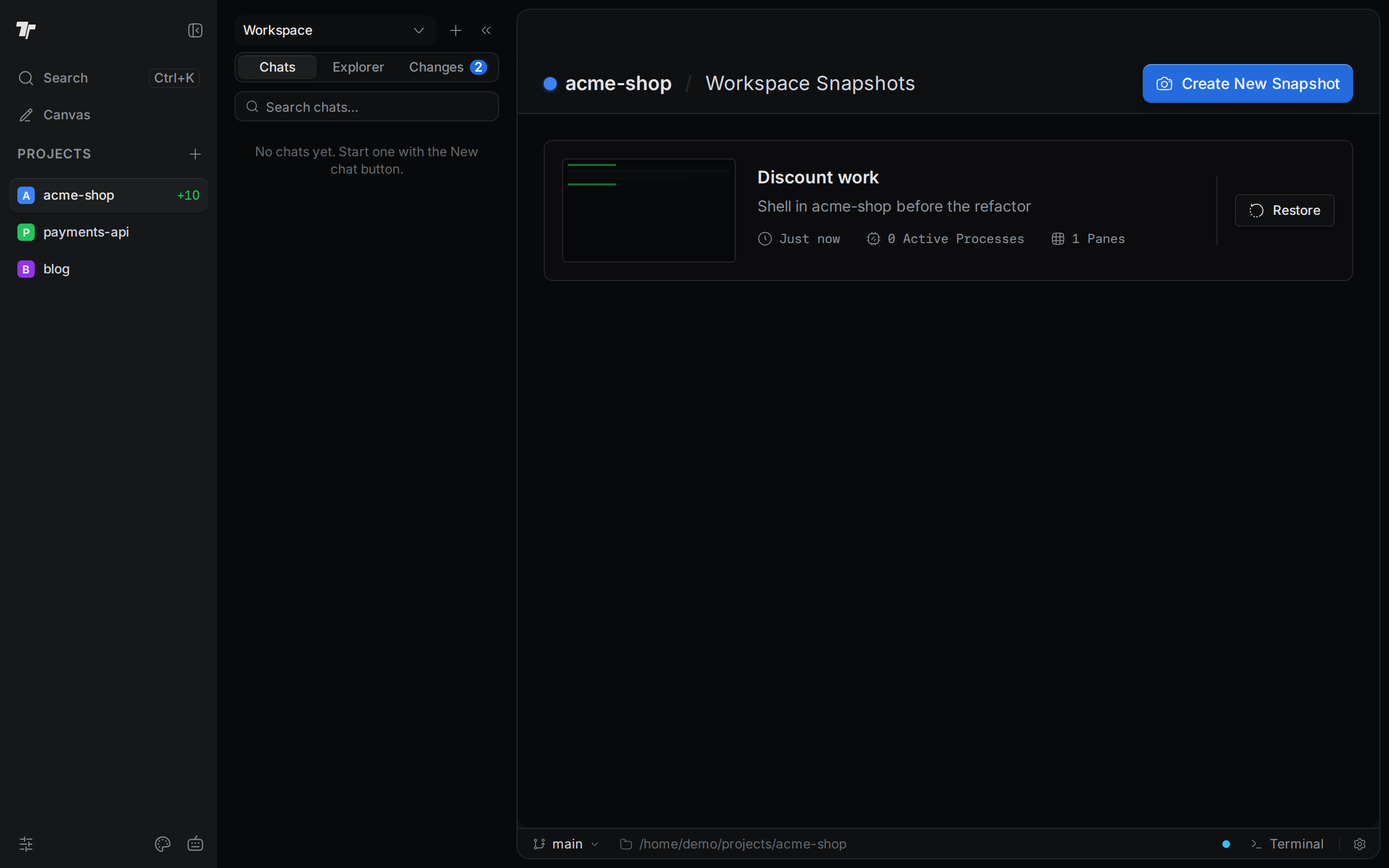
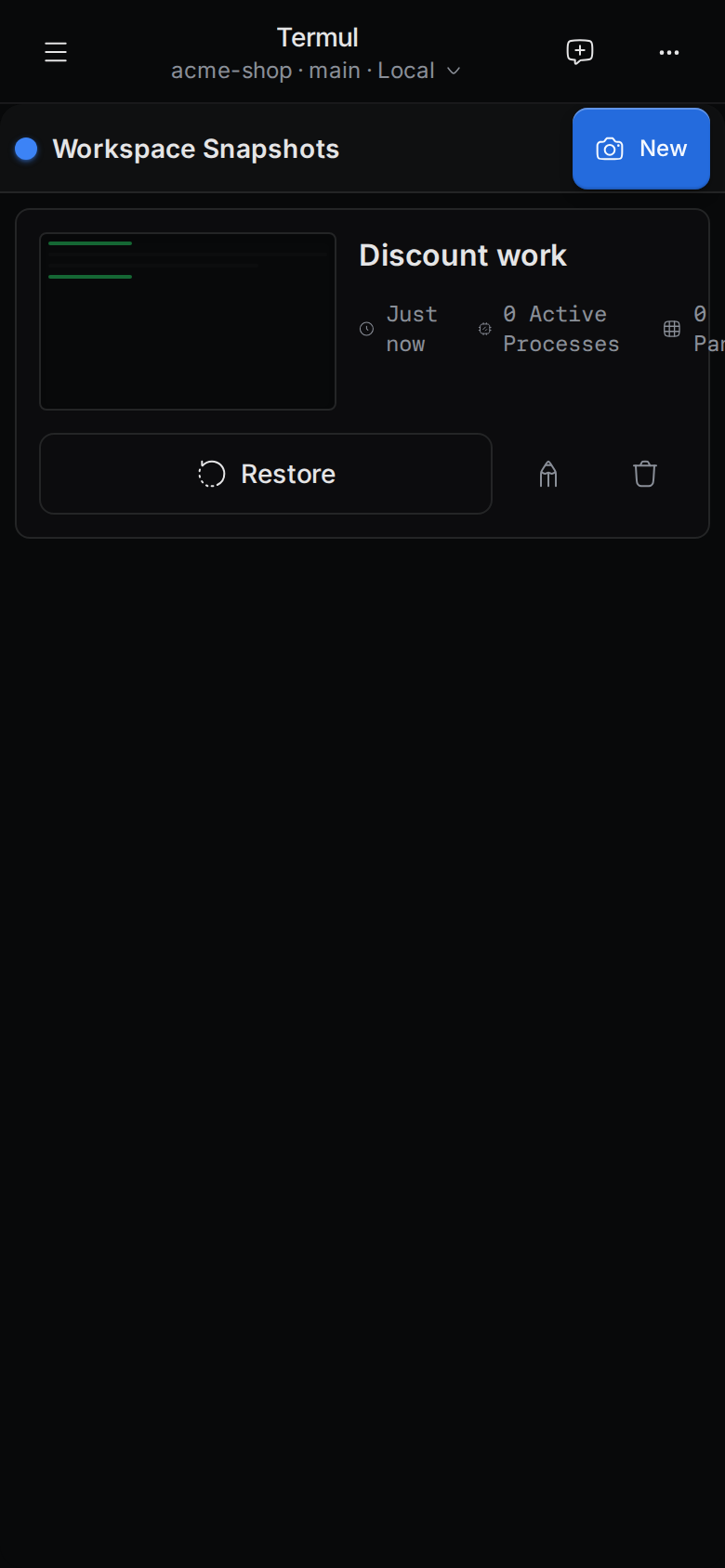
You can also save a snapshot from the Workspace Snapshots page. Select Create New Snapshot, or Create First Snapshot if the list is empty. On a phone, the button is New. After you save a snapshot on a phone, Termul goes back to the chat screen. Open the snapshots page again to see it.
See your snapshots
The Workspace Snapshots page lists the snapshots of the active project, newest first.
- On a phone, open the menu and select the camera icon at the bottom.
- In a browser on a computer, add
#/snapshotsto the end of the Termul address, for examplehttps://termul.example.com/#/snapshots.
Restore a snapshot
Restoring closes every terminal in the project and ends the programs running in them. Save your work first.
- On the Workspace Snapshots page, select Restore on the snapshot.
- Read the Restore Snapshot dialog. It says how many terminals the snapshot will recreate. If the project has open terminals, it warns that restoring ends their processes.
- Select Restore.
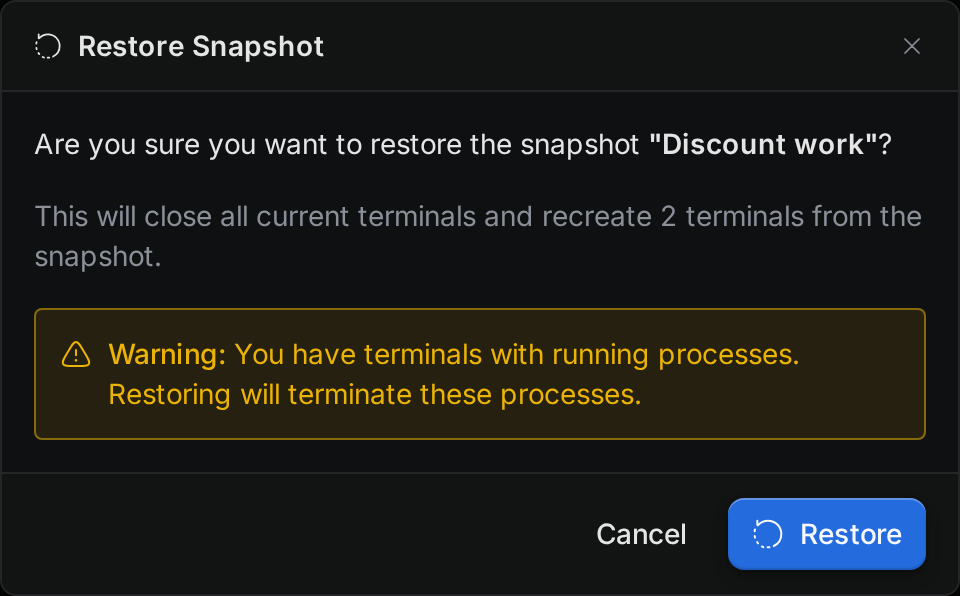
Termul closes the project's terminals. Then it opens a new shell for each terminal in the snapshot, with the saved name, shell, and folder. The restored terminals start with a new prompt, without the old output. They open as tabs in the active pane, and Termul takes you back to the workspace. Chats, files, and terminals in other projects are not affected.
Rename or delete a snapshot
To delete a snapshot on a computer, hover it on the Workspace Snapshots page and select the trash icon (Delete). On a phone, select the trash icon on the snapshot. Confirm with Delete. You can't undo this.
To rename a snapshot, use a phone:
- Select the pencil icon on the snapshot.
- Type the new name.
- Press
Enter, or tap somewhere else. PressEscto cancel.
The pencil icon on a computer doesn't work yet.
When snapshot storage is full
Each project has limited room for snapshots. When it fills up, Termul first removes the saved terminal output from older snapshots. If that isn't enough, it deletes the oldest snapshots. It never deletes the newest one. Termul shows a warning that says how many snapshots it changed or removed.