Keyboard shortcuts
Every default shortcut in Termul, the browser differences, and how to change them.
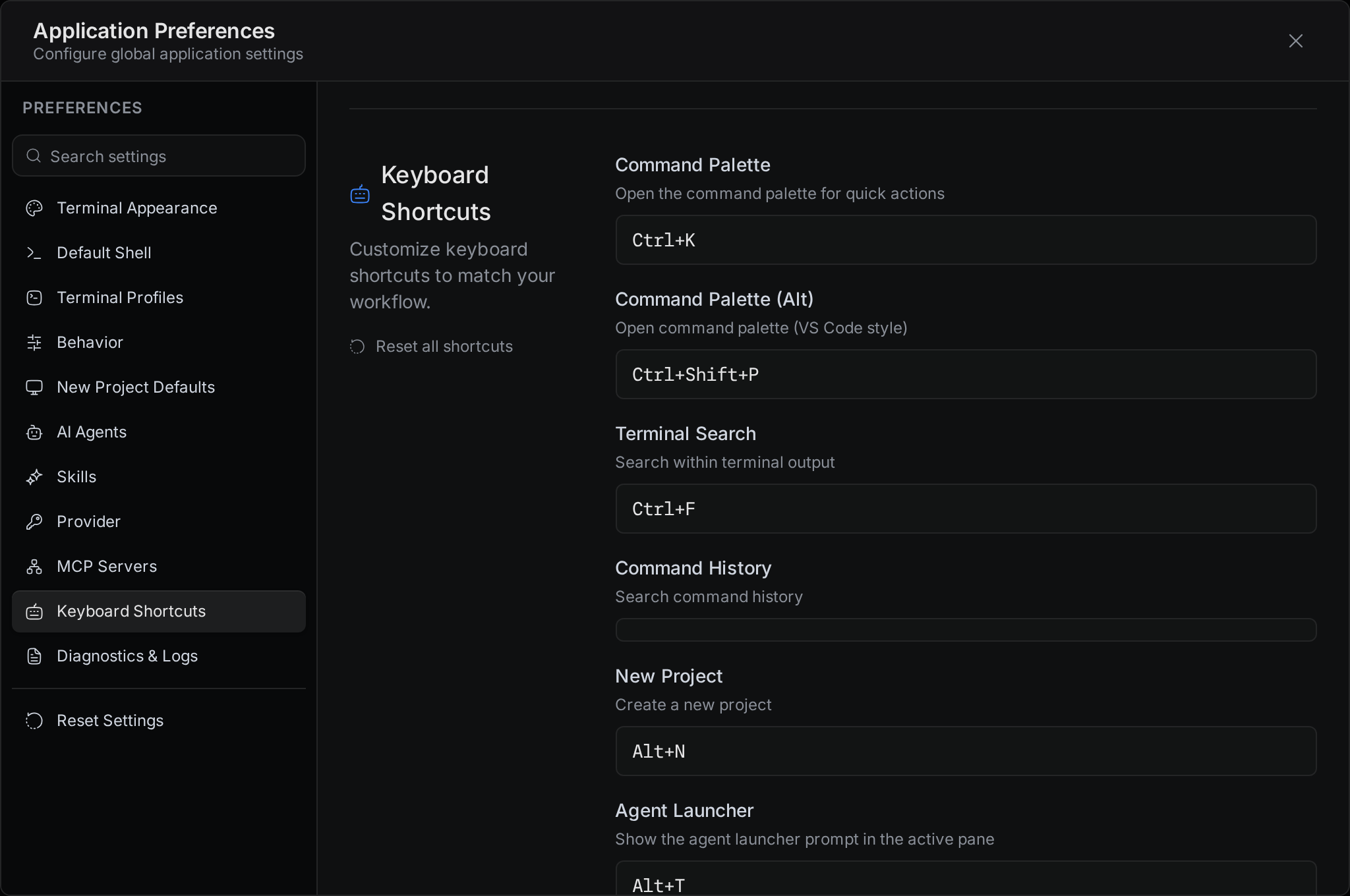
This page lists the keys Termul uses. Most of them you can change in Settings > Keyboard Shortcuts.
Shortcuts you can change
The desktop app and the browser version use different defaults for some actions. A web page in a normal browser tab can't use keys the browser keeps for itself, such as Ctrl+T (new tab), Ctrl+W (close tab), and Ctrl+R (reload). So the browser version uses Alt for those actions instead.
The names in the first column are the names you see in Settings > Keyboard Shortcuts.
| Action | Desktop app | Browser |
|---|---|---|
| Command Palette | Ctrl+K | Ctrl+K |
| Command Palette (Alt) | Ctrl+Shift+P | Ctrl+Shift+P |
| Agent Launcher (new chat in the active pane) | Ctrl+T | Alt+T |
| New Project | Ctrl+N | Alt+N |
| New Browser Tab | Ctrl+Shift+N | Not available |
| Close Tab | Ctrl+W | Alt+W |
| Next Tab | Ctrl+PageDown | Alt+PageDown |
| Previous Tab | Ctrl+PageUp | Alt+PageUp |
| Command History | Ctrl+R | Not set |
| Toggle Side Panel | Ctrl+B | Ctrl+B |
| Toggle Projects | Ctrl+Shift+B | Ctrl+Shift+B |
| Save File | Ctrl+S | Ctrl+S |
| Settings | Ctrl+, | Alt+, |
| Change Color Theme | Ctrl+Alt+T | Ctrl+Alt+T |
| Zoom In | Ctrl+= | Alt+= |
| Zoom Out | Ctrl+- | Alt+- |
| Reset Zoom | Ctrl+0 | Alt+0 |
| Create Worktree | Ctrl+Shift+Alt+N | Ctrl+Shift+Alt+N |
| Switch to Next Worktree | Ctrl+Shift+Down | Ctrl+Shift+Down |
| Switch to Previous Worktree | Ctrl+Shift+Up | Ctrl+Shift+Up |
| Switch to Project Root | Ctrl+Shift+Home | Ctrl+Shift+Home |
| Open Terminal in Worktree | Ctrl+Shift+Alt+T | Ctrl+Shift+Alt+T |
A few notes on these keys:
- The zoom keys change the size of the whole Termul window, not only the terminal text.
- Toggle Side Panel does nothing while you type in the editor, a text field, or a terminal. Click an empty part of the window first.
- Toggle Projects does nothing while you type in the editor or a text field.
- Command History opens a searchable list of commands you ran in this project. In the browser it has no key by default. Give it one in Settings, or open it from the command palette.
- The worktree keys act on the working copies of the current project. See Worktrees.
Keys you can't change
These keys are built in. They don't appear in Settings.
| Where | Key | What it does |
|---|---|---|
| Anywhere | Ctrl+1 to Ctrl+9 | Switch to the first to ninth project in the projects list. |
| Command palette | Esc | Close the palette. |
| Agent launcher | Enter or Ctrl+Enter | Start the chat. |
| Agent launcher | Esc | Hide the launcher. |
| Chat message box | Enter or Ctrl+Enter | Send the message. |
| Chat message box | Shift+Enter | Start a new line. |
| Chat message box | Esc | Stop the agent while it works. |
| Terminal | Ctrl+C | Copy the selected text. With no selection, stop the running command. |
| Terminal | Ctrl+V | Paste. |
| Terminal | Ctrl+A | Select all text in the terminal. |
| Terminal | Shift+Enter | Insert a new line without running the command. |
| File explorer | Ctrl+A, Ctrl+C, Ctrl+X, Ctrl+V | Select all, copy, cut, and paste files. |
| File explorer | F2 | Rename the selected file. |
| File explorer | Delete | Delete the selected files. |
| File explorer | Esc | Clear the selection. |
| Git history | Up, Down | Move between commits. |
| Git history | Enter | Open the first changed file of the commit. |
| Git history | Ctrl+C | Copy the commit hash. |
| Git history | / | Go to the filter box. |
In a browser tab, your browser may use Ctrl+1 to Ctrl+9 to switch its own tabs. If that happens, click the project in the projects list instead.
Keys on macOS
On macOS, press Cmd wherever this page says Ctrl. For example, open the command palette with Cmd+K and close a tab with Cmd+W.
Ctrl on macOS belongs to the shell. In a terminal, Ctrl+C stops the running command and Ctrl+R searches your shell history, as in any other macOS terminal. Copy and paste in the terminal with Cmd+C and Cmd+V.
Keys in the terminal on Windows and Linux
On Windows and Linux, Termul's shortcuts win over the shell when a terminal has focus. For example, Ctrl+K opens the command palette instead of deleting to the end of the line. Other Ctrl keys, such as Ctrl+E, Ctrl+U and Ctrl+L, still reach the shell.
To give a key back to the shell, assign different keys to the Termul shortcut that uses it.
Settings also lists Terminal Search (Ctrl+F). In the current version it doesn't open a search box. On Windows and Linux it still keeps Ctrl+F from reaching the shell, so give it other keys if you use Ctrl+F at the prompt.
Change a shortcut
- Open Settings with
Ctrl+,(Alt+,in the browser). - Select Keyboard Shortcuts.
- Click the key box next to the action. It shows Press keys....
- Press the new key combination. Termul saves it at once.
If the keys are already in use, Termul shows Conflicts with "<action>". Press other keys, or select Use anyway. Press Esc to stop without a change.
To go back to the default, select the reset arrow next to the action. To reset every shortcut, select Reset all shortcuts.
For the most used shortcuts there is a faster way. Select the keyboard button at the bottom of the projects list to open the Shortcut Menu. It lists Command Palette, Command History, Agent Launcher, Toggle Side Panel, Toggle Projects, Settings, and the zoom keys, and you change them the same way.
See Settings for the other options on that page.