Create your first project
Add a folder to Termul as a project, with an optional template and Git repository.
A project in Termul is a folder on your computer, or on the server when you use Termul in a browser. Each project has its own terminals, chats, open files, and Git view. You can create a new folder for a project or add a folder that already exists.
Open the New project dialog
Use one of these:
- In the projects list on the left, select + next to Projects, then select New project.
- Press
Ctrl+N(Cmd+Non macOS). In the browser, pressAlt+N. - If you have no projects yet, select Create Your First Project in the middle of the window.
The Create New Project dialog opens.
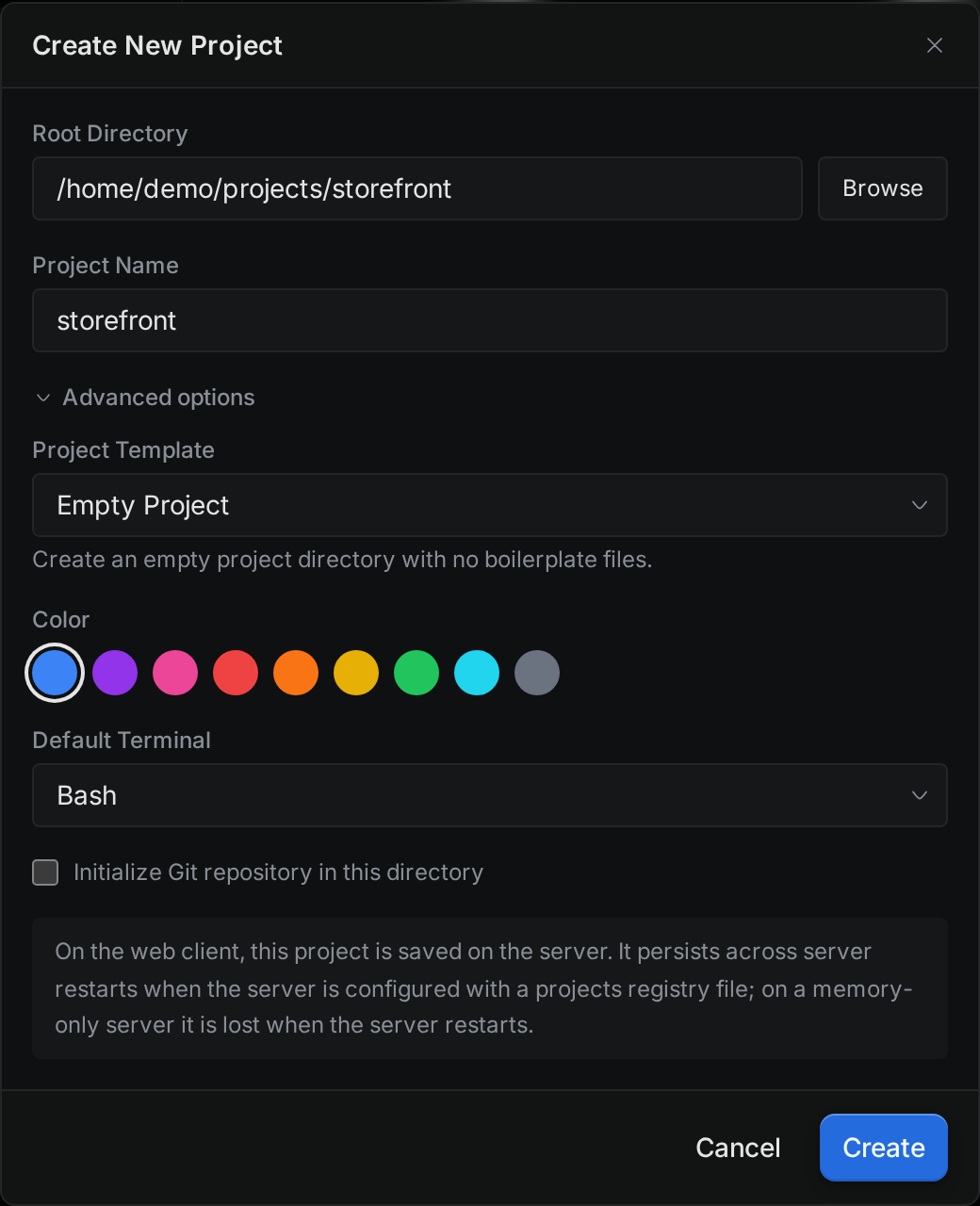
Create a project
- In Root Directory, type the path of the folder, or select Browse to pick it.
- Check Project Name. Termul fills it in from the folder name. Change it if you want a different name.
- Optional: select Advanced options to choose a template, a color, or a shell. See the next sections.
- Select Create.
If the folder doesn't exist, Termul creates it. The dialog closes, a message at the bottom of the window shows the progress, and Termul switches to the new project.
From here you can open a terminal or start a chat with an agent.
Choose a template
A template writes a few starter files into the folder. It doesn't install packages or run any commands. Pick one in Advanced options > Project Template.
| Template | What it creates |
|---|---|
| Empty Project | Nothing. This is the default. |
| Node.js Project | package.json, src/index.js, .gitignore, and .env.example. It also sets the project variables PORT=3000 and NODE_ENV=development. |
| Rust Project | Cargo.toml, src/main.rs, and .gitignore. |
| React App (Vite) | package.json, vite.config.ts, tsconfig.json, index.html, src/main.tsx, src/App.tsx, src/index.css, and .gitignore. |
| Python Project | main.py, requirements.txt, .env.example, .gitignore, and an empty src folder. |
Pick a color and a shell
In Advanced options:
- Color sets the color of the project's icon in the projects list. The first color comes from Settings > New Project Defaults.
- Default Terminal sets the shell that new terminals in this project use. Termul lists the shells it found on the computer.
You can change both later. See Manage projects.
Start a Git repository
Advanced options has an Initialize Git repository in this directory check box. Select it to run git init in the folder before Termul writes any template files.
The check box shows only when the folder is empty or doesn't exist yet. If the folder already has a Git repository, Termul finds it on its own, and the Git tools work right away.
Add a folder you already have
To work on an existing project, use the same dialog:
- Open the Create New Project dialog.
- In Root Directory, pick the folder.
- Leave Project Template set to Empty Project.
- Select Create.
Termul doesn't change or move your files. If you later delete the project from Termul, the folder stays on disk.
Pick a folder in the browser
In the browser, Browse opens the Select Project Folder window. It shows the folders on the computer that runs Termul, not the computer in front of you.
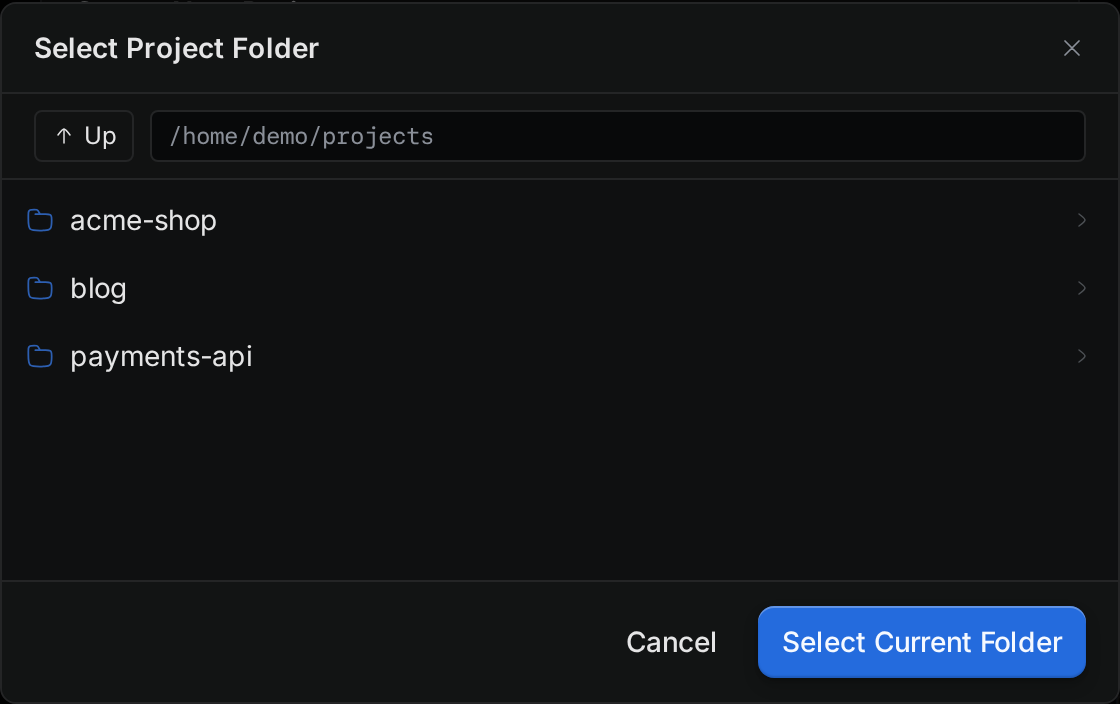
- Select a folder to open it. Select Up to go to the parent folder.
- When the path at the top shows the folder you want, select Select Current Folder.
The window can't create folders. To use a new folder, type its path in Root Directory instead. Termul creates it when you select Create.
In the browser, the dialog also shows a note about where the project is saved. The server keeps your projects after a restart only if it is set up with a projects file. See Browser and phone.