Settings
Change how Termul looks and behaves, for the whole app or for one project.
Termul has two kinds of settings. App settings apply everywhere: the terminal font size, the default shell, keyboard shortcuts, notifications, and updates. Project settings apply to one project: its name, folder, color, environment variables, and shell.
Open app settings
Use one of these:
- Press
Ctrl+,(Cmd+,on macOS). In the browser version, pressAlt+,. - Select the Settings button at the bottom left of the sidebar.
- Open the command palette with
Ctrl+Kand choose App Preferences.
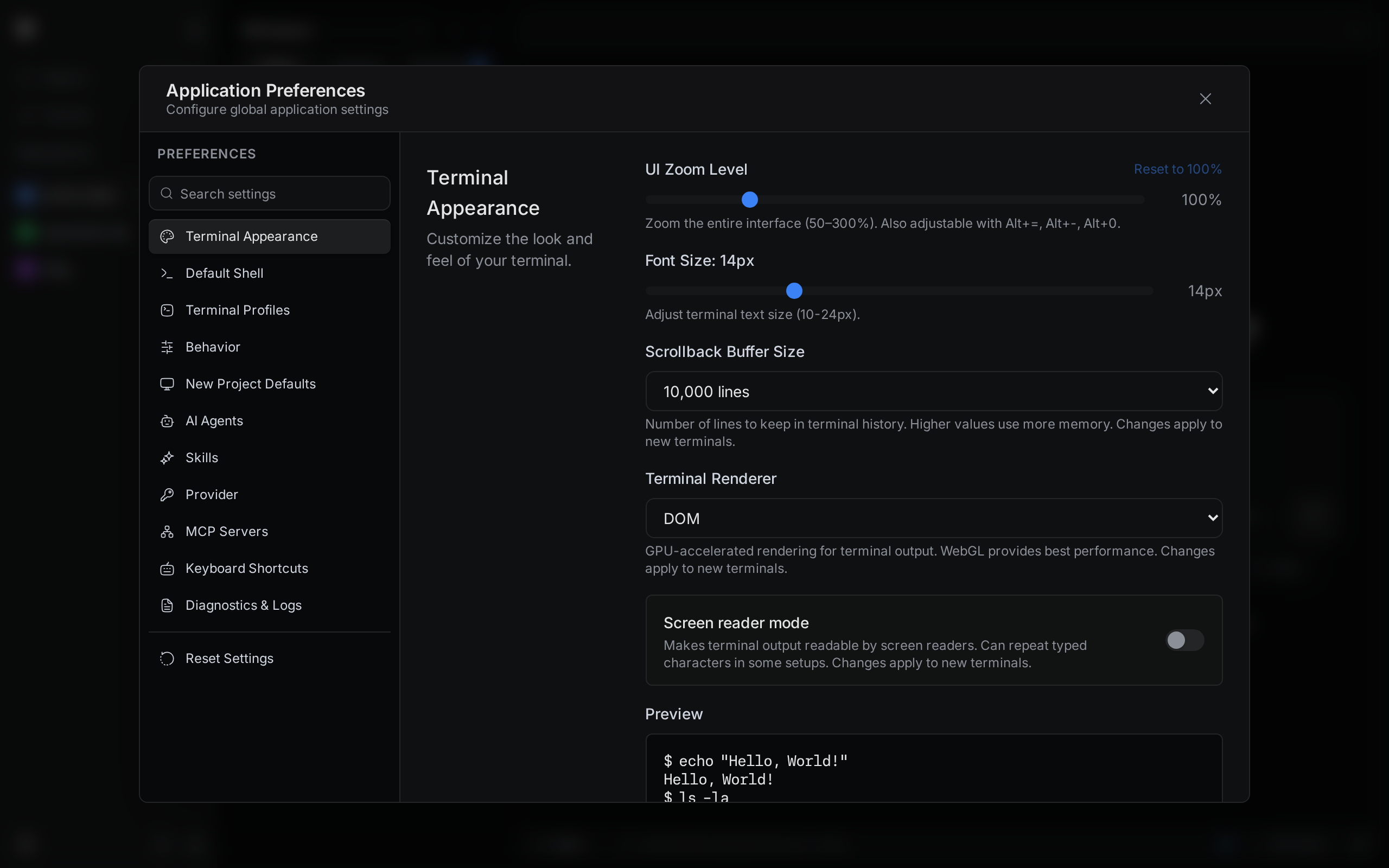
The tabs are on the left. To find one option, type in Search settings above the tabs.
Open project settings
- Right-click the project in the sidebar.
- Select Settings.
You can also open the command palette and choose Project Settings. That opens the settings of the project you have open.
In this section
App settings
Every tab in Application Preferences and what its options do.
Project settings
Name, folder, environment variables, shell, and worktree links for one project.
Themes
Pick a color theme, light or dark.
Keyboard shortcuts
Change a shortcut, undo a change, and handle conflicts.
Notifications
Get a notification when an agent finishes or needs you.
Updates
Pick a release channel and install new versions of the desktop app.