App settings
What each tab in Application Preferences does.
App settings apply to every project. Open them with Ctrl+, (Cmd+, on macOS, Alt+, in the browser version) or the Settings button at the bottom left of the sidebar. Termul saves each change as soon as you make it.
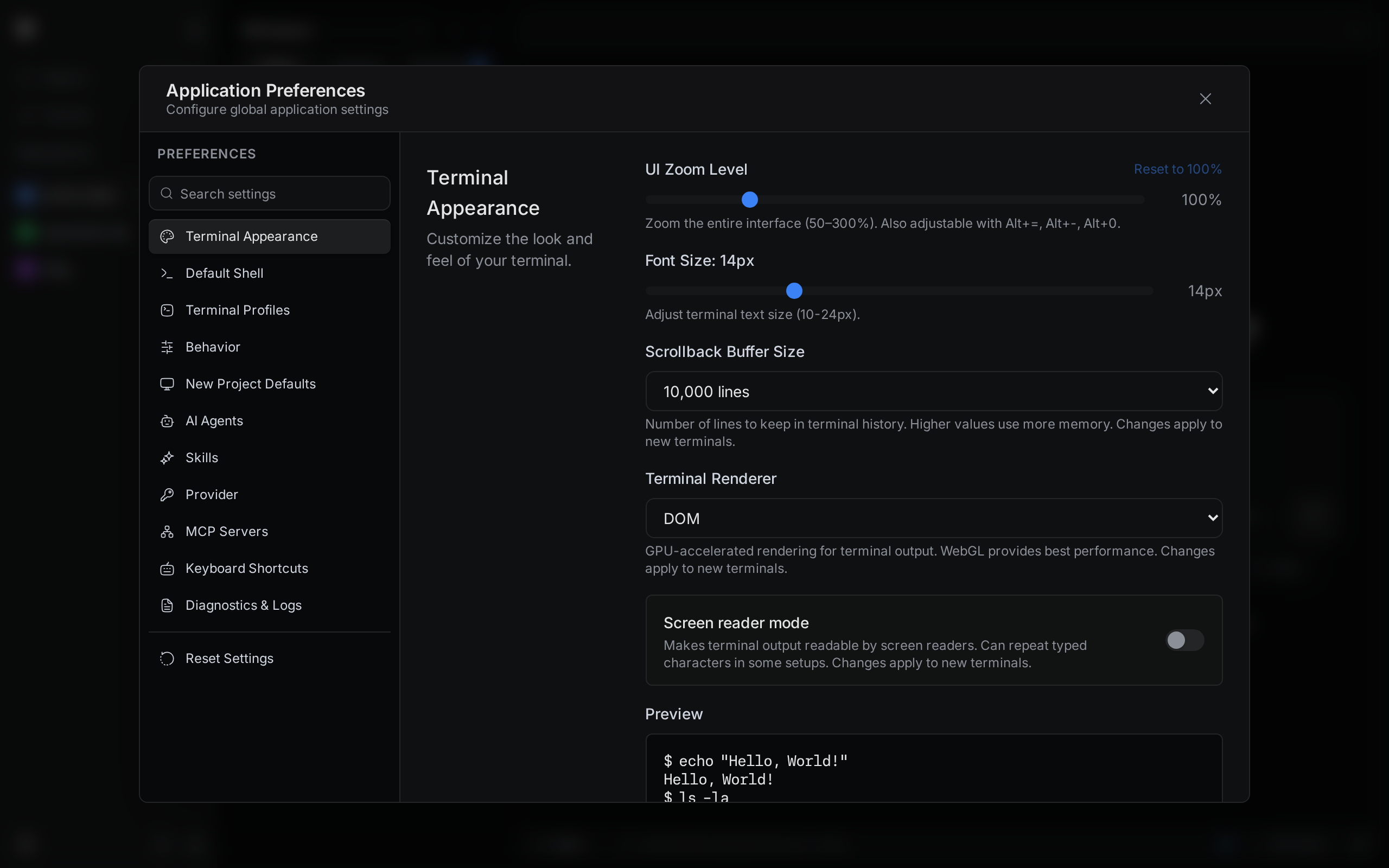
Terminal Appearance
These options change how text looks in the app and in terminals.
- UI Zoom Level makes the whole window bigger or smaller, from 50% to 300%. Select Reset to 100% to go back. You can also press
Ctrl+=,Ctrl+-, andCtrl+0. In the browser version these keys belong to the browser, so Termul usesAlt+=,Alt+-, andAlt+0. - Font Size sets the size of terminal text, from 10 to 24 pixels. The default is 14.
- Scrollback Buffer Size sets how many lines each terminal keeps for scrolling back, from 1,000 to 50,000. The default is 10,000. More lines use more memory.
- Terminal Renderer chooses how terminals draw text. Auto uses WebGL, which draws with your graphics card, and falls back to DOM when WebGL is not available.
- Screen reader mode lets screen readers read terminal output. It is off by default. In some setups it can repeat the characters you type.
- Preview shows sample terminal text at the font size you picked.
The scrollback, renderer, and screen reader options apply to terminals you open after the change.
Default Shell
Shell picks the shell that new terminals start. System Default uses your computer's default shell. The list also shows every shell Termul found on your computer. A project can use a different shell. See Project settings.
Terminal Profiles
A terminal profile is a saved way to open a terminal: a shell, its arguments, a start folder, and environment variables.
- Select Add profile.
- Fill in the fields. Leave a field empty to use what a normal new terminal uses.
- Name is the name you see in the command palette.
- Shell is the shell to run. Choose Other path or name to type a shell that is not in the list.
- Arguments go to the shell. Put one argument on each line.
- Start folder is where the terminal opens. Empty means the open project or worktree folder.
- Environment variables are
KEY=valuelines. They replace project variables with the same name.
- Select Save.
To open a terminal from a profile, press Ctrl+K and choose New Terminal: followed by the profile name. Use the pencil button to edit a profile and the trash button to delete it.
Behavior
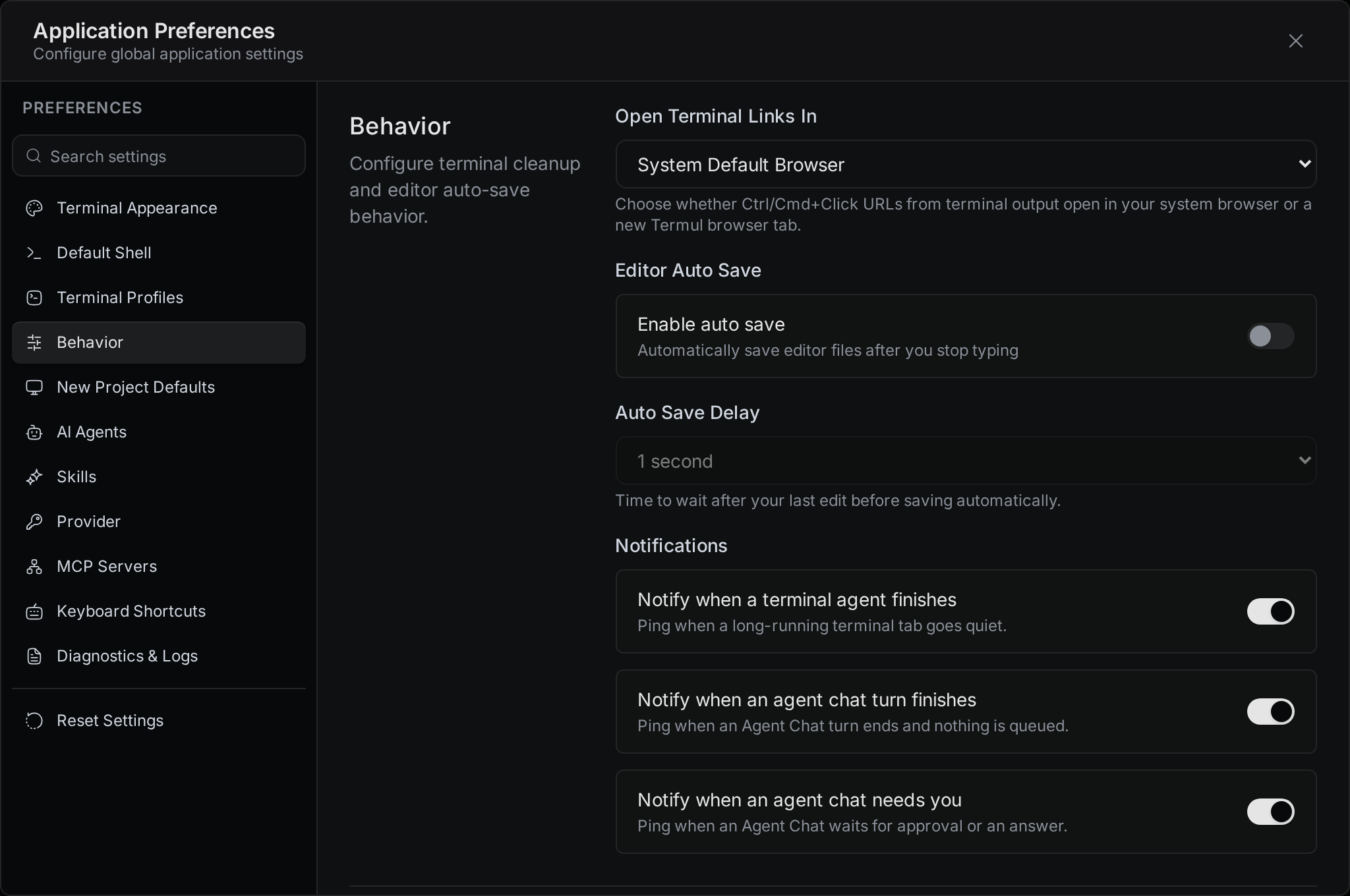
- Open Terminal Links In decides where a link opens when you
Ctrl+clickit in a terminal (Cmd+clickon macOS). Choose System Default Browser or Termul Browser. Termul Browser opens the link in a browser tab inside Termul, which is in the desktop app only. - Enable auto save saves files in the editor after you stop typing. It is off by default.
- Auto Save Delay is how long Termul waits after your last edit before it saves: 0.5, 1, 2, or 5 seconds. You can change it only while auto save is on.
- Notifications has three switches for agent notifications. See Notifications.
New Project Defaults
Default Color is the color that new projects get. You can change the color of one project later in its project settings.
AI Agents, Skills, Provider, and MCP Servers
These tabs set up the agents you chat with. Agent setup explains each one.
- AI Agents lists the agents Termul can start, shows whether each is ready, and sets how long Termul waits for an agent.
- Skills shows the skills installed for every project and for the open project.
- Provider adds Claude accounts, picks the default account, and shows how much of each account's limits you have used.
- MCP Servers manages the tool servers that new agent chats can use.
Keyboard Shortcuts
Change any shortcut in the list. See Keyboard shortcuts.
Updates
Pick a release channel, check for updates, and turn automatic checks on or off. See Updates.
Diagnostics & Logs
Termul writes a log file that helps find the cause of a problem. This tab gets the log out of the app.
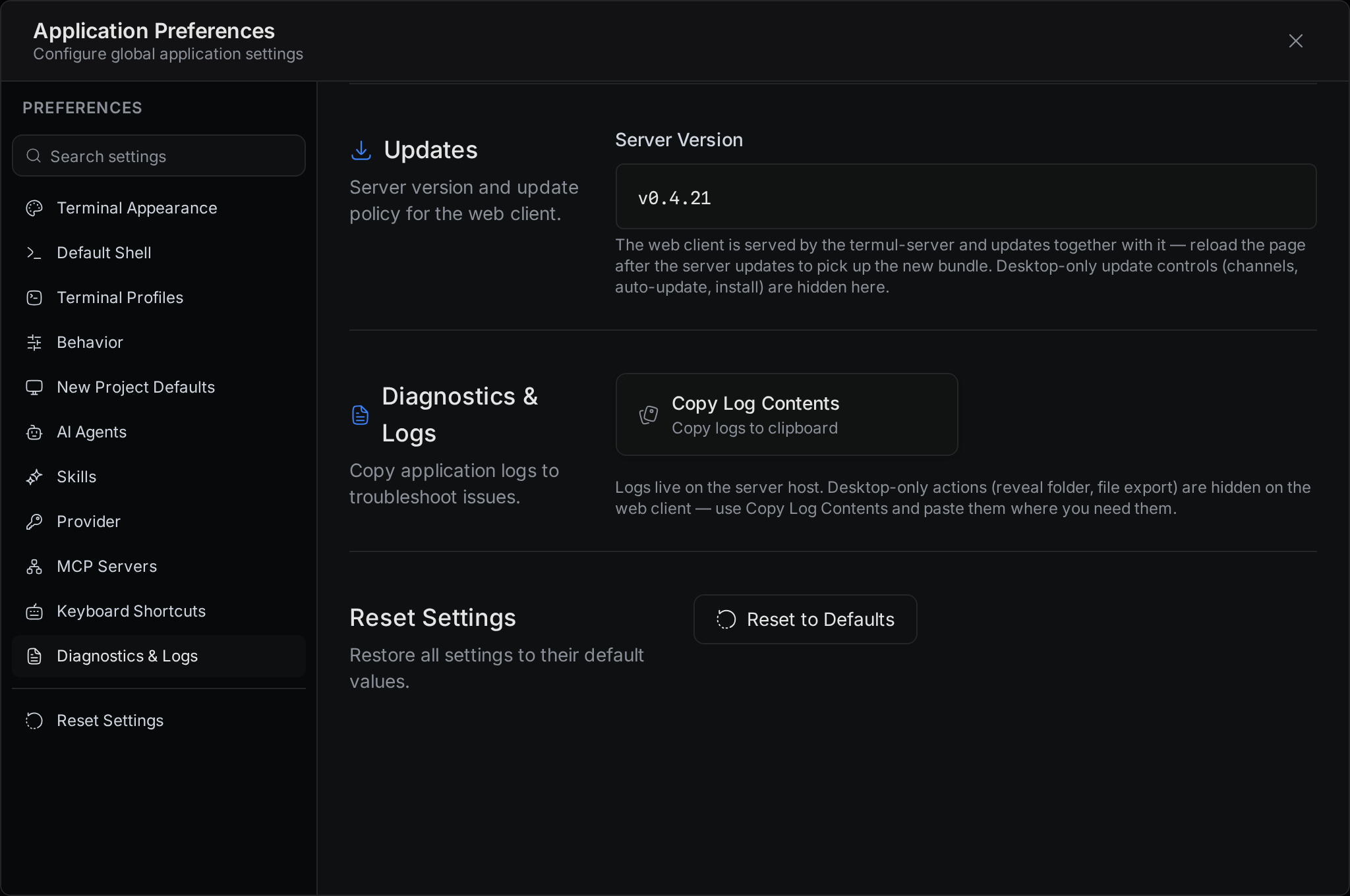
- Copy Log Contents copies the log to your clipboard. Paste it into a bug report.
- Reveal Log Folder opens the folder with the log file. Desktop app only.
- Export Log File... saves a copy of the log where you choose. Desktop app only.
- Export to Default Directory saves a copy named
termul.login your Downloads folder. Desktop app only.
In the browser version, the log is on the computer that runs the server, so only Copy Log Contents is available. See Report a problem.
Reset Settings
Reset to Defaults puts every app setting and every keyboard shortcut back to its default. It also shows the sidebar and side panels again if you hid them. Termul asks you to confirm first. You cannot undo a reset.
A reset keeps your terminal profiles. Delete them under Terminal Profiles if you want them gone.