Edit a design on the canvas
Open your project's OpenPencil design file in a tab, edit it, and save it.
The canvas is a design editor inside Termul. It opens your project's .op file, which is the design file format of OpenPencil, an open-source design tool. A .op file holds frames, shapes, and text. You can keep the design in the same repository as the code and look at both in one window.
Before you start
You need two things.
A .op file in the project's root folder. Termul looks only in the root folder, not in subfolders. If there are several .op files, Termul opens the first one in alphabetical order. If there are none, Termul shows this message:

The OpenPencil editor server. The canvas runs OpenPencil's editor server, a program named op-host-web-server. Termul doesn't include it. Termul looks for it in this order:
- The file named in the
TERMUL_OP_HOST_SERVERenvironment variable. - An OpenPencil source folder named in the
TERMUL_OPENPENCIL_ROOTenvironment variable. Build the server in that folder first withcargo build -p op-host-web-server.
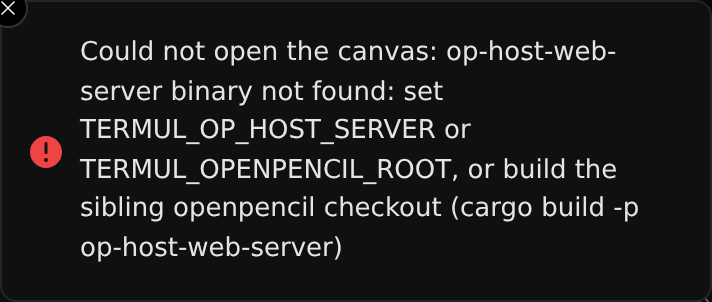
Set the variable for the program that runs Termul: the desktop app, or the server that hosts the browser version. If Termul can't find the editor server, opening the canvas shows this error:
Open the canvas
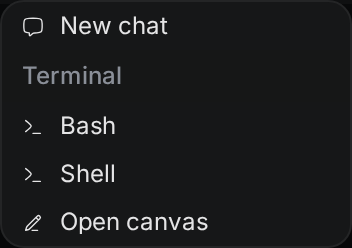
Select a project first. Then use one of these ways:
- Click Canvas in the left sidebar. When the sidebar is collapsed, click the pen icon (Open canvas).
- Click + (New tab) at the right end of the tab bar, then click Open canvas.
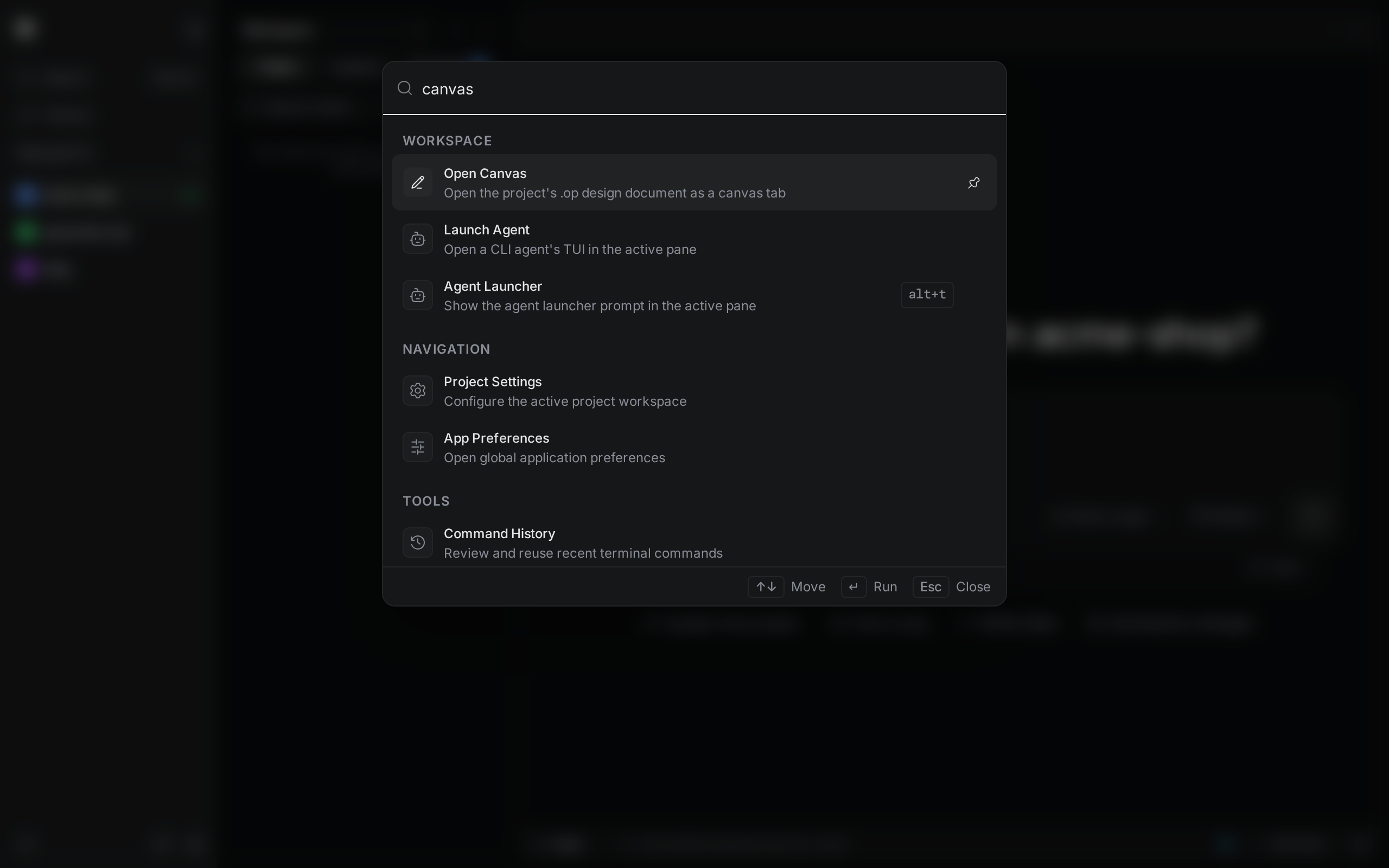
- Open the command palette with
Ctrl+K(Cmd+Kon macOS), typecanvas, and run Open Canvas.
Each project has one canvas tab. If it is already open, Termul switches to it.
Work in the canvas tab
The bar at the top of the tab shows the file name and the editor's status:
- Starting canvas… while the editor server starts.
- Connecting… while the editor loads.
- Ready when you can edit.
- Canvas failed to connect if the editor didn't load.
Below the bar is the OpenPencil editor. Use its tools to add and change frames, shapes, and text. The editor uses the same light or dark appearance as Termul.
Save your changes
A dot next to the file name means you have unsaved changes. Click Save at the right end of the bar to write them to the .op file.
If the document changed while you were editing, Termul shows Canvas conflict. Choose one:
- Keep my changes keeps your version.
- Use the saved version drops your changes and loads the saved document.
- Dismiss closes the message without choosing.
Let an agent work on the design
When you open the canvas, Termul adds an MCP server named OpenPencil Canvas to your MCP servers. An MCP server is a connection that gives an agent extra tools. Through this one, an agent can work with the design that is open on the canvas. See Agent setup for how agents use MCP servers.