Claude accounts
Sign in to more than one Claude account, pick one per project, watch your limits, and switch when one runs out.
If you have more than one Claude subscription, for example a personal one and a work one, Termul can keep them all signed in. Each project uses one account for its Claude Agent chats. When an account reaches its limit, Termul offers to continue the chat on another account.
Accounts apply to Claude Agent chats only. To set up Claude Agent itself, see Set up Claude Agent.
See your accounts
Open Settings with Ctrl+, (Cmd+, on macOS) and click Provider. The Claude Code group lists every account, whether it is signed in, which projects use it, and how much of its limits it has used.
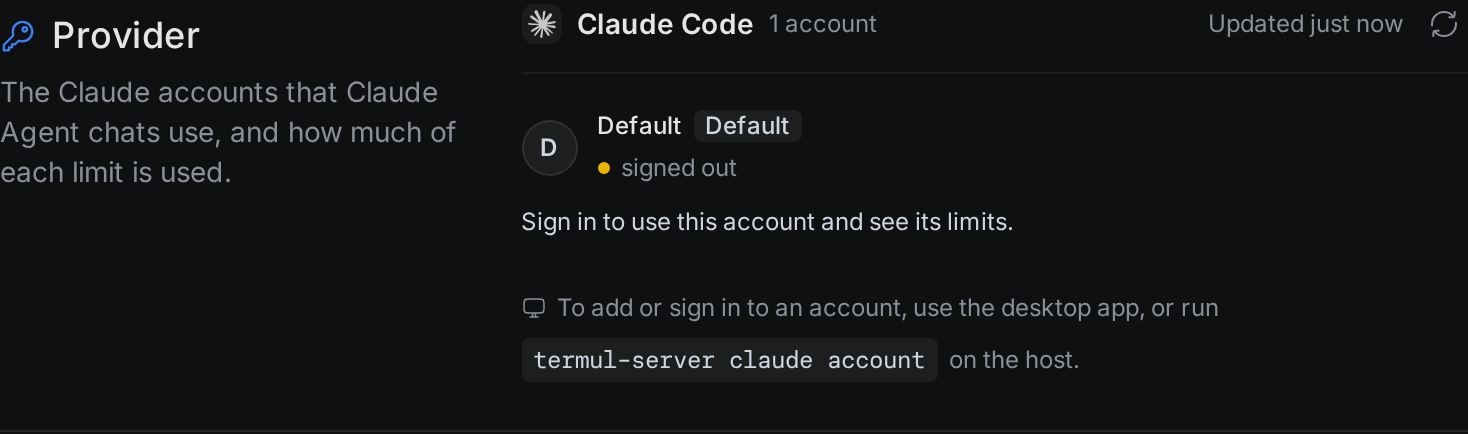
The first account is called Default. It is the Claude Code login you made with claude auth login. Termul shows a name you choose for each account, never its email address.
Add an account and sign in
termul-server claude account commands on the server. See Manage accounts on a server.- In Settings > Provider, click Add account.
- Type a short name, such as
Work, and click Continue. - Your browser opens claude.ai. Sign in with the account you want to add.
- Go back to Termul. When the sign-in finishes, Termul shows the account's plan and usage.
- Click Done, or click Make default to use the new account for every project that follows the default.
If you are already signed in to another account on claude.ai, sign out there first, or open the sign-in page in a private window. If the sign-in does not finish, the account stays in the list, signed out. Click Try again.
Each account has a ⋯ menu with these actions:
- Make default: projects that follow the default use this account.
- Sign in or Sign in again: repeat the browser sign-in, for example after the login expires.
- Rename: change the name Termul shows.
- Remove: sign Claude Code out of the account on this computer. Its chat history stays. Projects that used it move to the default account. You cannot remove Default.
Every account shares the same Claude Code settings, skills, plugins and chat history. Only the login is separate.
Choose the account for a project
- Hover over the project in the sidebar and click its settings button.
- Click Provider.
- Pick Follow default, or pick one account.
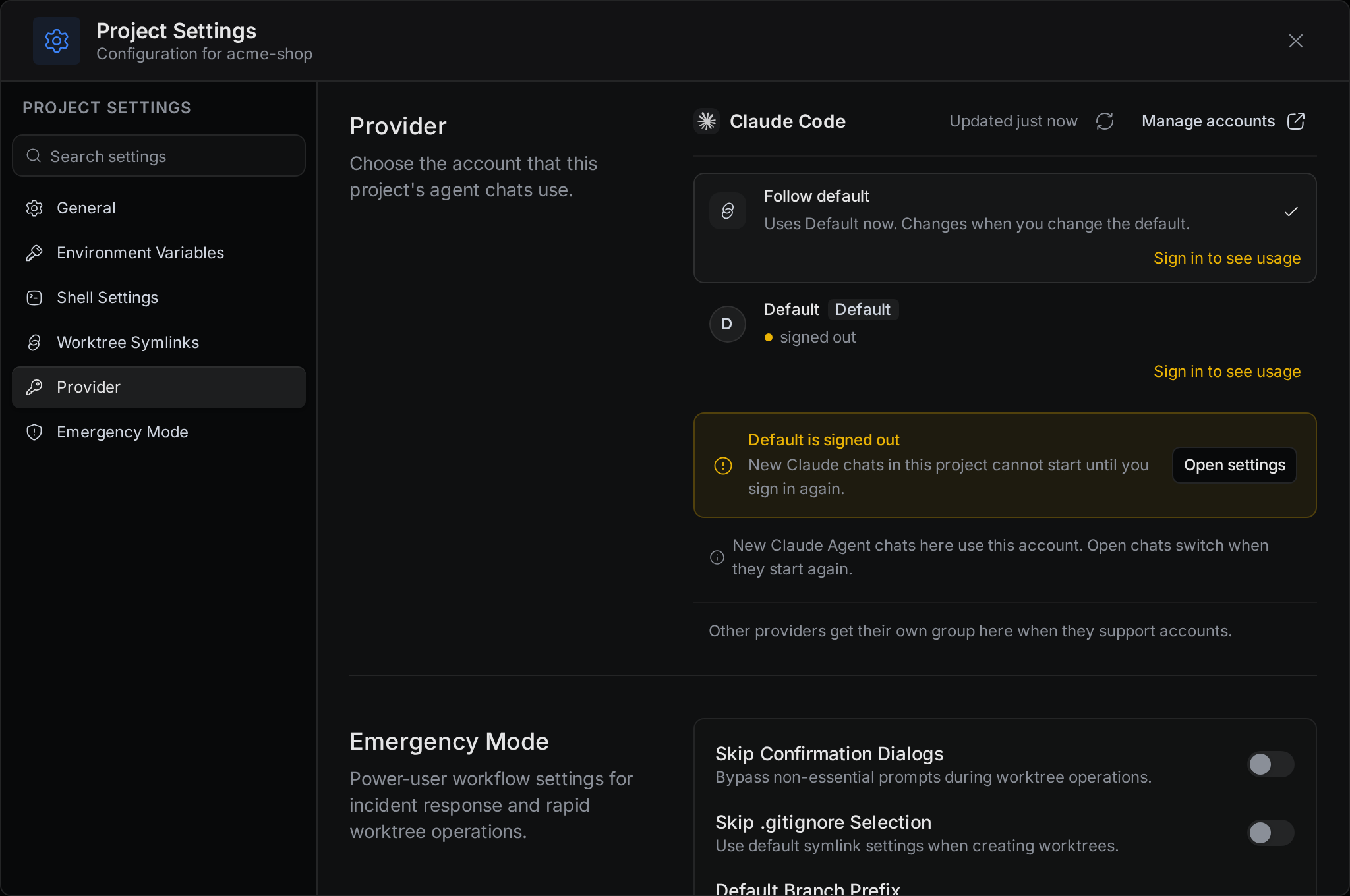
New Claude Agent chats in the project use the account you pick. Chats that are already open move to it when they start again.
You can also change the account from a Claude Agent chat. Click the account button in the chat box and pick an account under Account for this project.
Watch your usage and limits
Claude plans have a 5-hour limit and weekly limits. In Settings > Provider, each account shows how much of its main limit it has used and when the limit resets. Click an account's usage bar to see all of its limits. To read the numbers again, click the refresh button at the right end of the Claude Code row.
Termul reads these numbers through Claude Code. It never reads your login token. If Termul cannot read them, the account shows Usage is not available right now.
Switch accounts when you hit a limit
During a chat, Termul watches the limit of the account the chat uses.
- When the account gets close to a limit, a yellow bar above the chat box shows how much it has used. If another account has room, the bar has a Switch to button with that account's name.
- When the account reaches its limit, a red box says which limit ran out and when it resets.
In the red box, you can:
- Click Switch to account and continue. Termul moves the project to that account and continues the same chat. Termul suggests the account with the most room left.
- Click Other account to pick a different one.
- Click Continue when it resets. Termul continues the chat when the limit resets. Click Cancel to stop the wait.
- Click Add account to sign in to another account. This button is in the desktop app only.
Project Settings shows the same warning when the project's account is at its limit, with a Use button for the account with the most room.
Manage accounts on a server
When Termul runs as a server for the browser version, the browser can list accounts, make one the default, and pick one per project. To add, sign in to, rename or remove an account, run these commands on the server. If the server uses --state-dir, add the same --state-dir PATH after claude.
termul-server claude account list
termul-server claude account add "Work"
termul-server claude account login <id>
termul-server claude account rename <id> "Office"
termul-server claude account default <id>
termul-server claude account project <project-id> <id>
termul-server claude account project <project-id> default
termul-server claude account remove <id>
list prints each account's ID, name, and whether it is signed in. add prints the login command to run next.
To check the server's Claude login and install Claude Agent from the command line, run:
termul-server claude auth status
termul-server claude auth login
termul-server claude install
For more about running the server, see Browser and phone.