Follow the agent's work
Read the agent's plan, steps, and diffs, review changed files, and queue, stop, edit, or retry your prompts.
While an agent works, the chat shows what it is doing step by step. You can read its plan, open each file it touched, and line up your next requests. You can also stop it at any time.
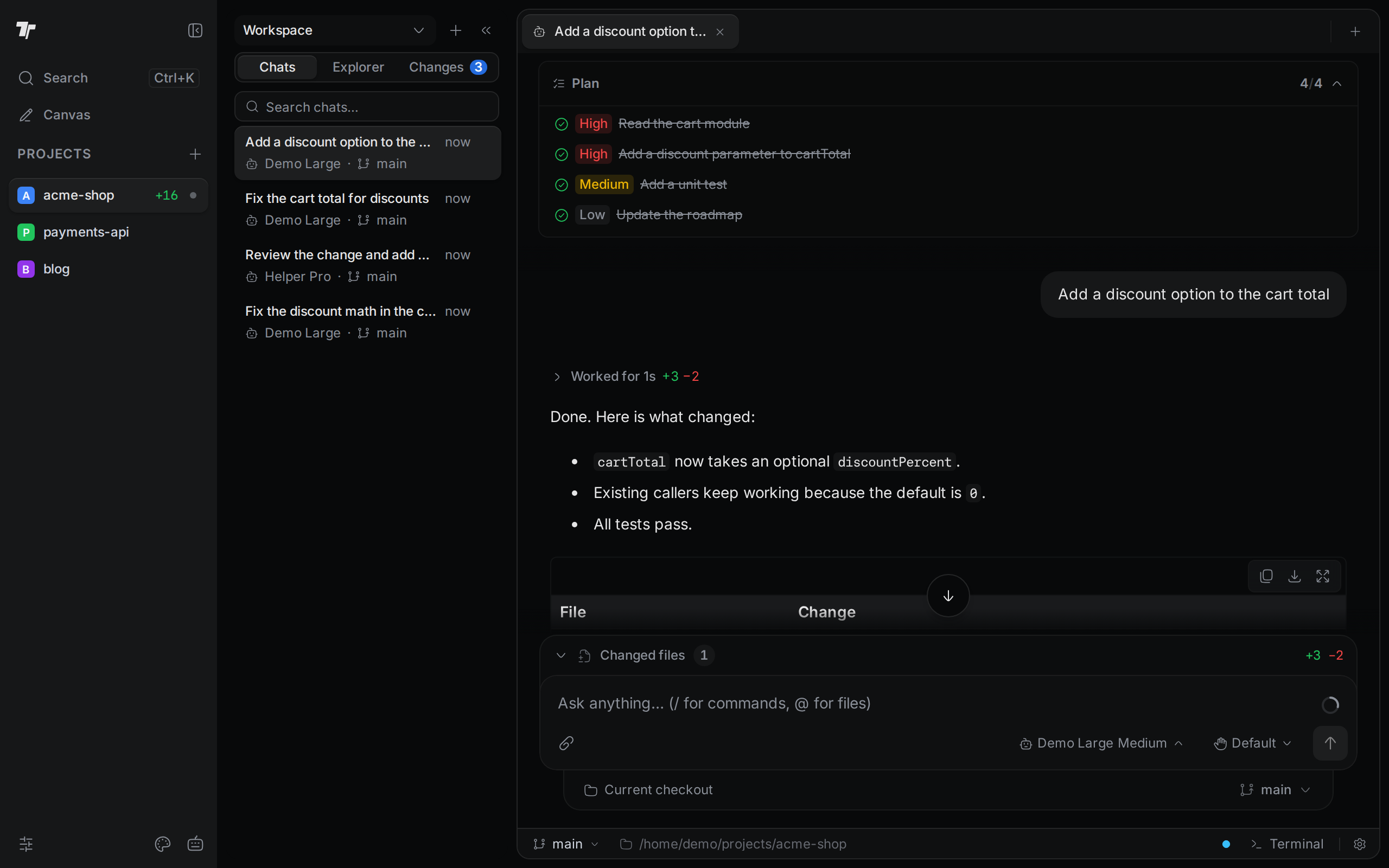
Read the plan
Many agents write a plan before they start. The plan stays at the top of the chat while you scroll. Its header shows Plan and how many tasks are done, such as 3/4. A spinner shows while a task is in progress.
Each task has a status icon and a priority: High, Medium, or Low. Finished tasks are crossed out. Click a task that has details to read them. Click the header to collapse or expand the plan. On a phone, the plan starts collapsed.
See each step
While the agent works, a Working… row sits above its reply. When the turn ends, the row changes to Worked for and the time it took, with the number of lines added and removed. Click the row to open it. If a step failed, the row is red and says "needs attention".
Inside, the steps are grouped, for example "Read 1 file, ran 1 search". Click a group to see its steps. Each step names what the agent did and what it did it to, such as Ran bun test. A file step shows the file name, such as cart.ts, and a read can add the lines it read. A failed step has a failure icon.
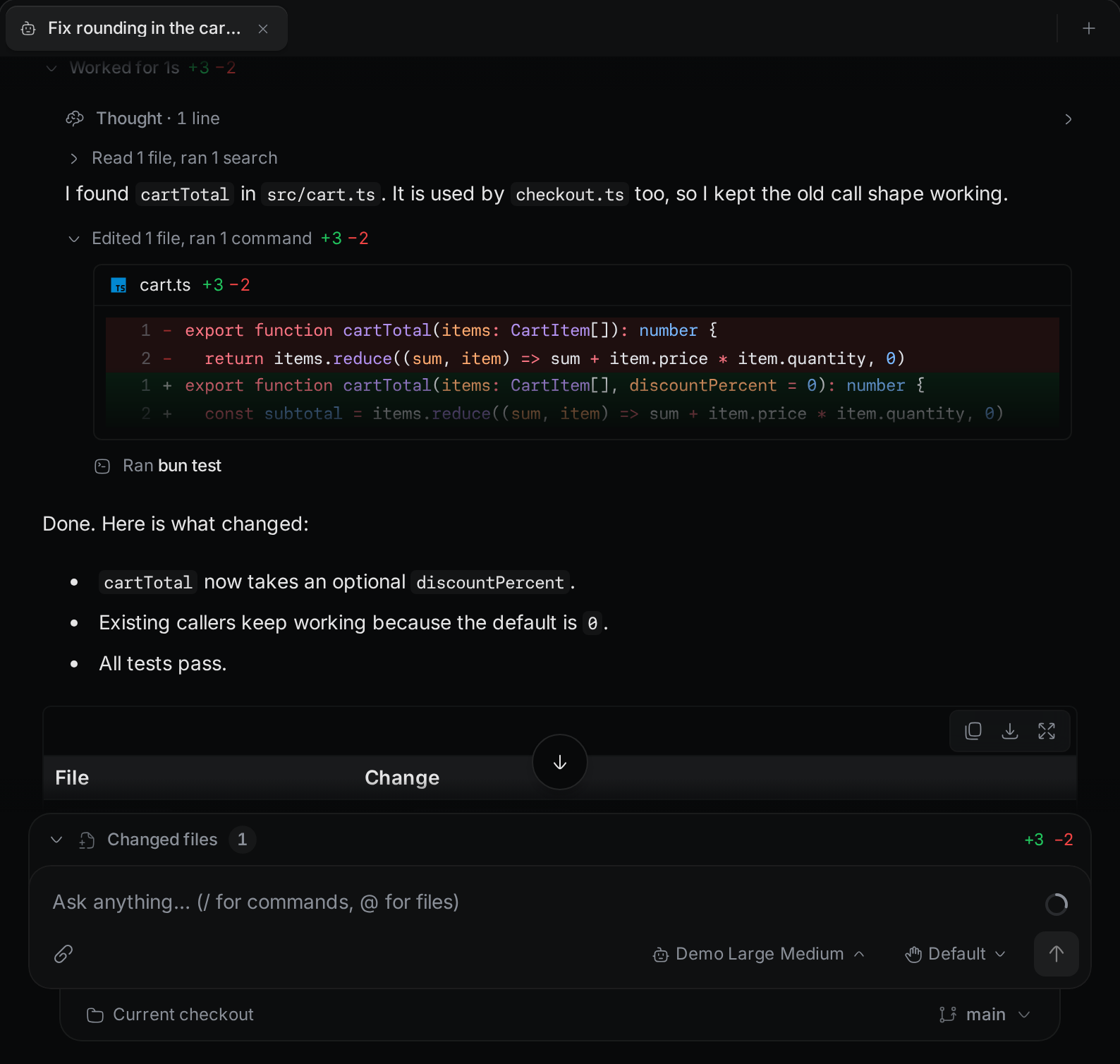
- Click a step to see its output, such as a command's output and exit code, or the file content the agent read.
- Click Open file on a step to open that file in the editor.
- An edit shows a short preview of its diff. Click the preview to see the whole diff. Click the file name above it to open the file at the first changed line.
- A Thought row holds the agent's reasoning and shows how many lines it has. Click it to read it.
Review changed files
The Changed files bar above the message box lists every file the agent edited, deleted, or moved in this chat. It shows how many files changed and how many lines were added and removed. Click the bar to open the list.
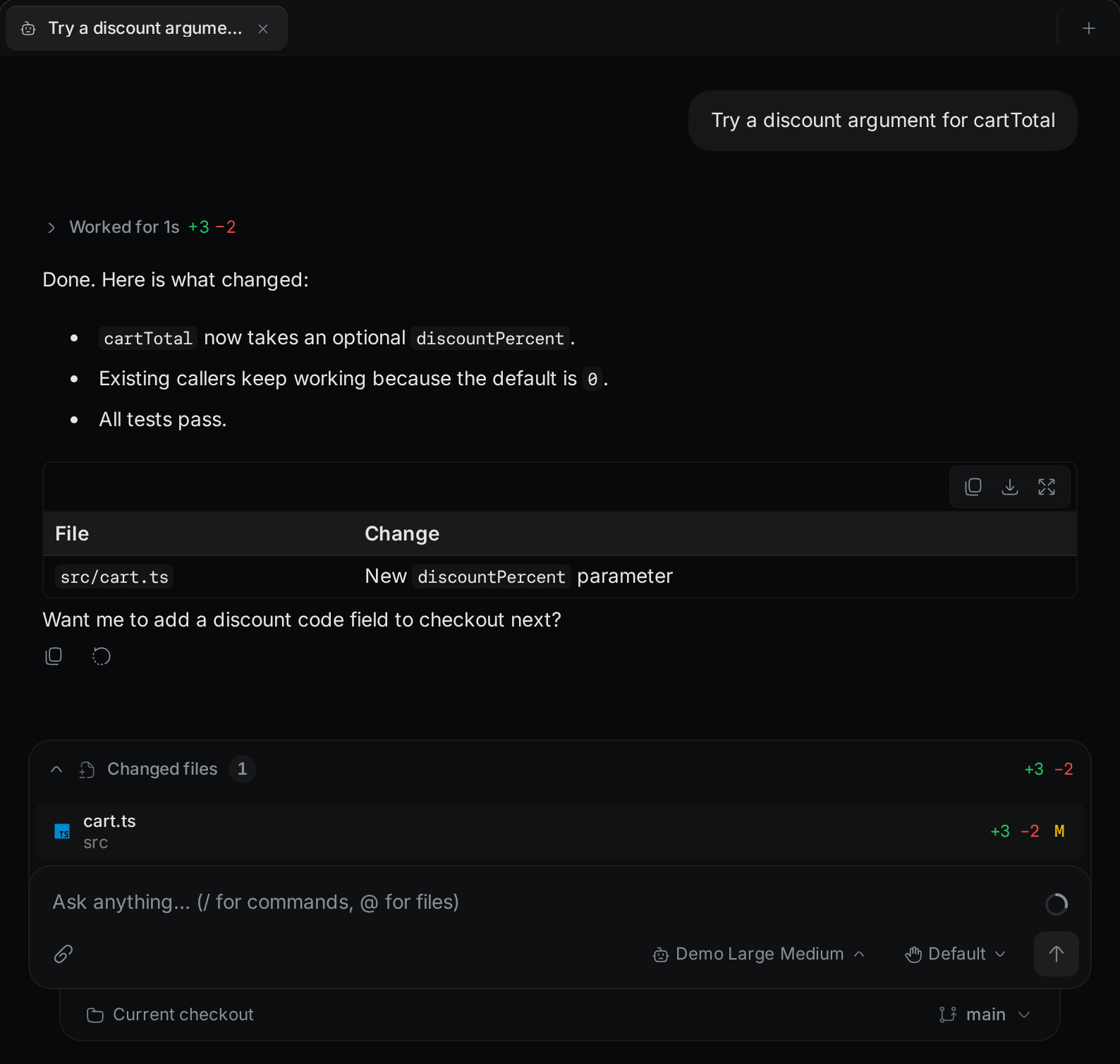
Each file has a letter: M for modified, D for deleted, or R for renamed. Click a file to open it in the editor. A deleted file does not open. This list is for review only. To stage and commit the changes, use the Changes tab in the side panel. See Git.
Open a subagent's details
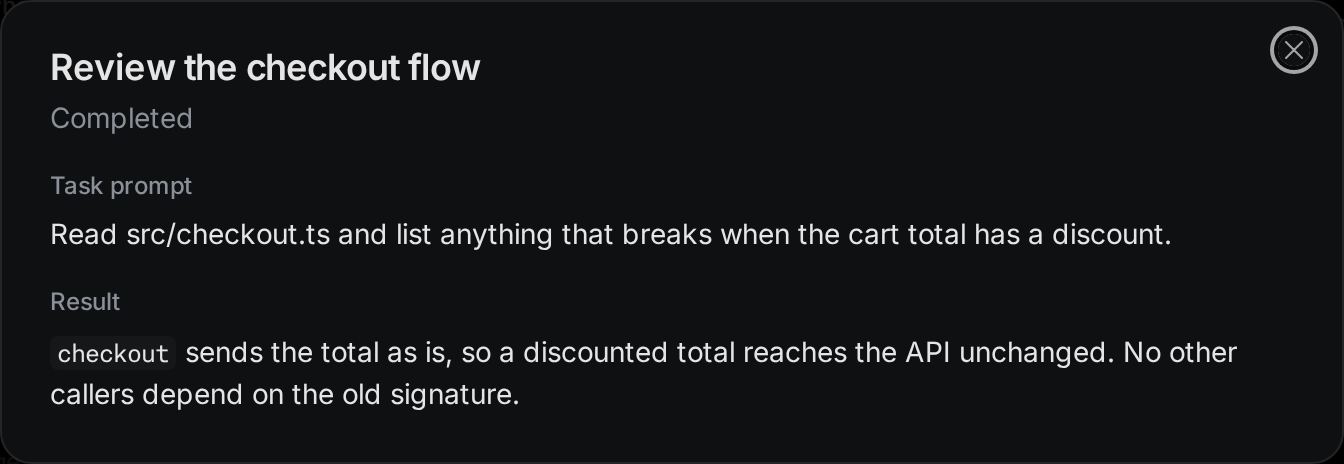
Some agents hand part of a task to a helper agent, called a subagent. A subagent step has a robot icon. Open the turn's step list and click the step. A window shows its status (Running, Completed, or Failed), the Task prompt the agent gave it, and the Result. It does not list the subagent's own steps.
Queue prompts
You do not have to wait for the agent to finish. Type your next message and press Enter. While the agent works, the send button becomes Queue message, and your message goes into a queue above the message box.
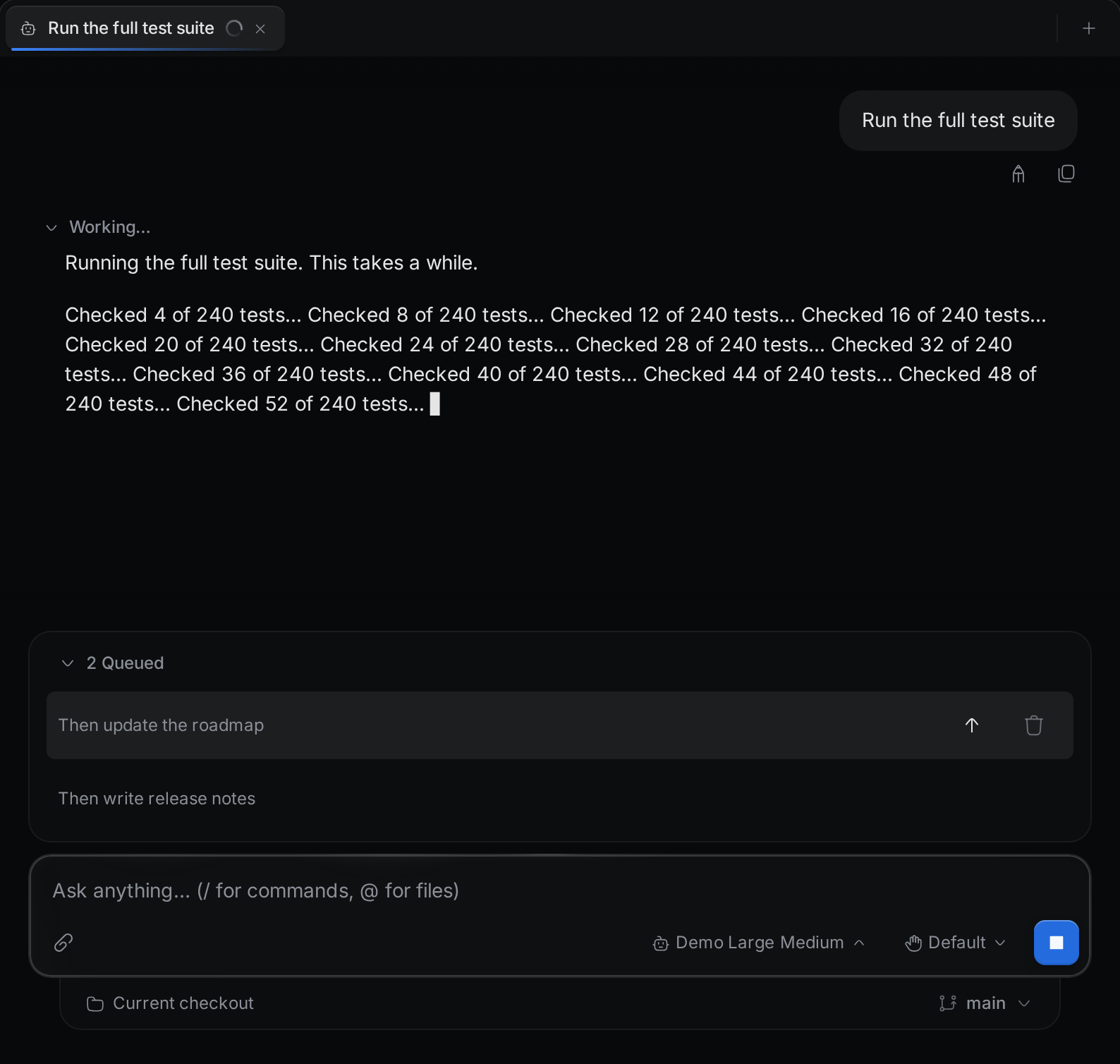
Termul sends the queued messages in order, one each time the agent finishes a turn. Click the Queued header to collapse the list. Hover a queued message to see its buttons. On a touch screen, the buttons are always visible. Each queued message has these buttons:
- Send now stops the agent's current turn and sends this message right away.
- Remove from queue deletes the message without sending it.
You cannot edit a queued message. Remove it and type it again.
Stop a turn
To stop the agent, do one of these:
- Press
Escin the message box. - Click Cancel turn, the square button. It takes the place of the send button while the agent works and the message box is empty.
Termul tells the agent to stop. Any approval request or question that was waiting is cancelled. If you have queued messages, Termul sends the next one.
Edit or retry a message
Hover a message to see its buttons. The last message in the chat always shows them.
- Edit, on your message, puts its text back in the message box. Change it and send it as a new message. The earlier messages and replies stay in the chat.
- Retry, on a finished reply, sends your last message again as a new turn. The old reply stays above the new one. Retry is hidden while the agent works.
- Copy copies the message. On the agent's reply, it copies everything the agent wrote in that turn.
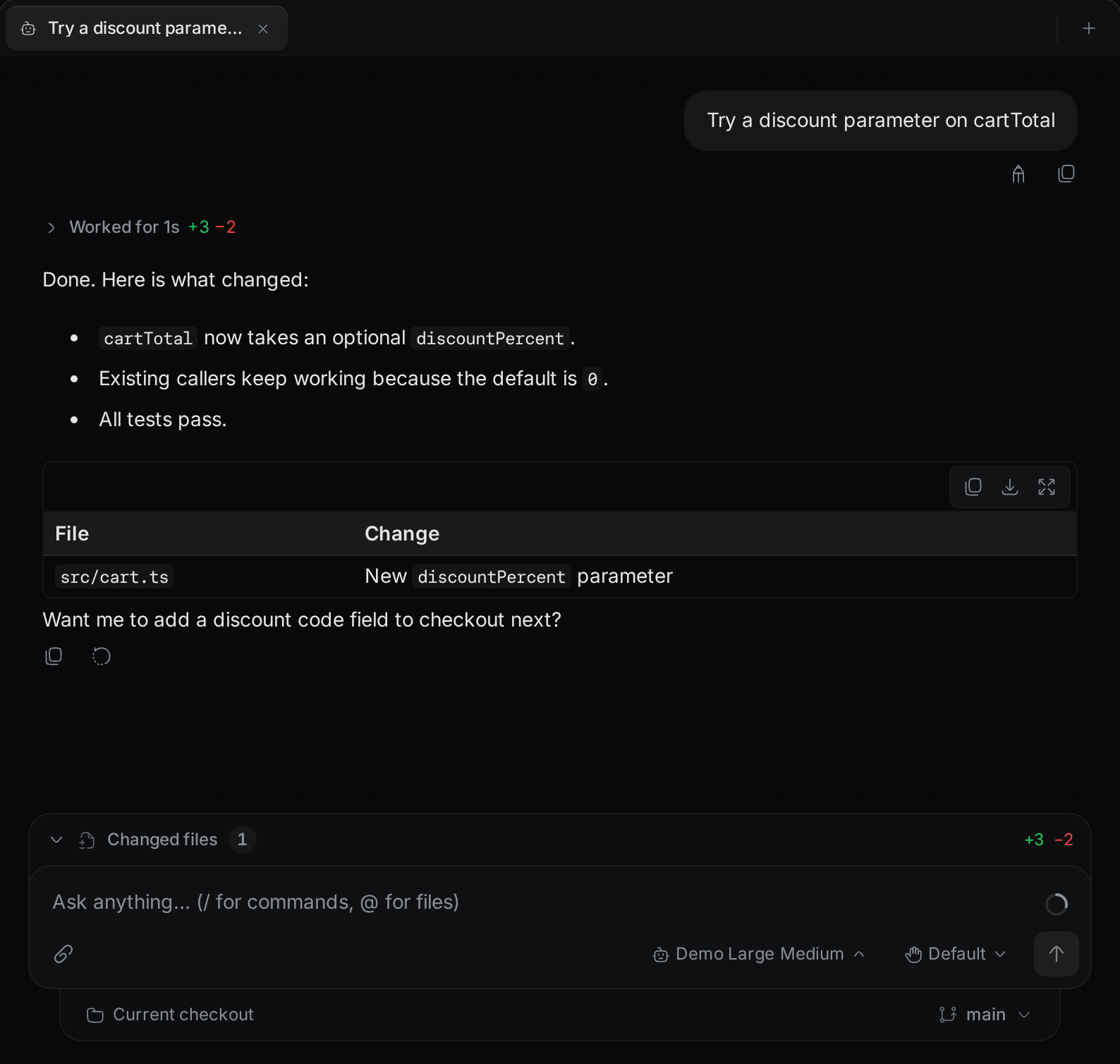
If the chat stopped, Retry starts the agent again before it sends your message. When a turn ends with an error, the error notice has its own Retry or Resume chat button.
Code blocks in a reply have their own Copy and Download buttons. Tables have copy, download, and View fullscreen buttons.