Approvals and questions
Answer an agent's permission requests and questions, and find out when a chat is waiting for you.
Some steps need your OK. Before an agent runs a risky command, it asks for permission. When it needs a decision, it asks you a question. The agent pauses until you answer, and Termul shows you which chats are waiting.
How often an agent asks depends on its mode. See Choose how much the agent may do.
Approve or reject a step
A permission request appears at the top of the message box with the title Approval needed. It names the command or action the agent wants to run.
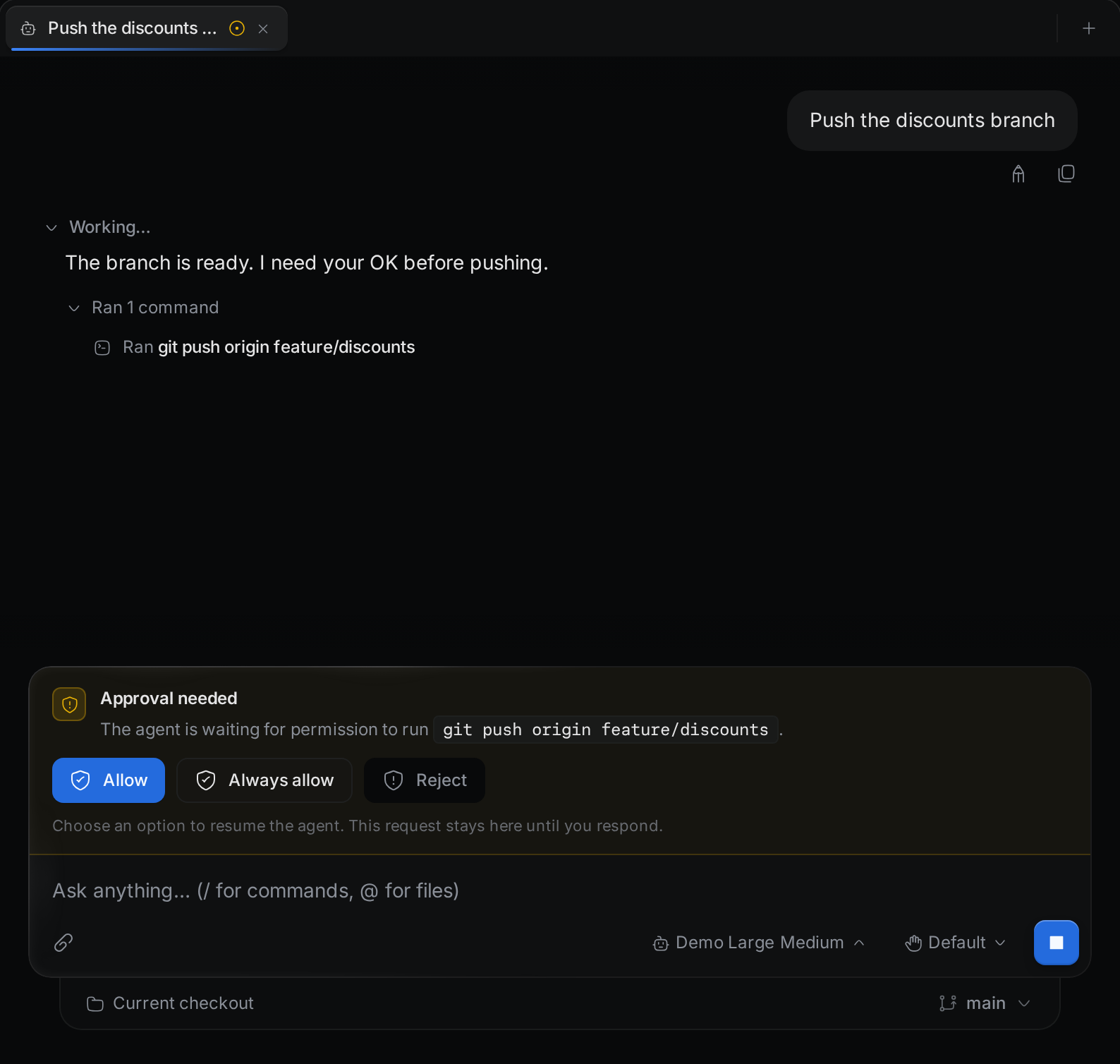
Click one of the buttons. The agent decides which buttons to offer, so the labels differ between agents. Termul always puts the allow buttons first and the reject buttons last. Common choices are:
- Allow. Run this step once.
- Always allow. Run this step now and stop asking for steps like it. The agent keeps track of what you allowed, so what "like it" means depends on the agent.
- Reject. Do not run the step.
If the agent offers no way to reject, Termul adds Cancel request. It cancels the request, and the step does not run.
A request has no close button. It stays until you choose an option or stop the turn. If the agent asks for several steps at once, Termul shows one request at a time, in the order they came. To stop the turn instead, press Esc in the message box. See Stop a turn.
Answer a question
When an agent asks you something, the question takes the place of the message box until you answer it.
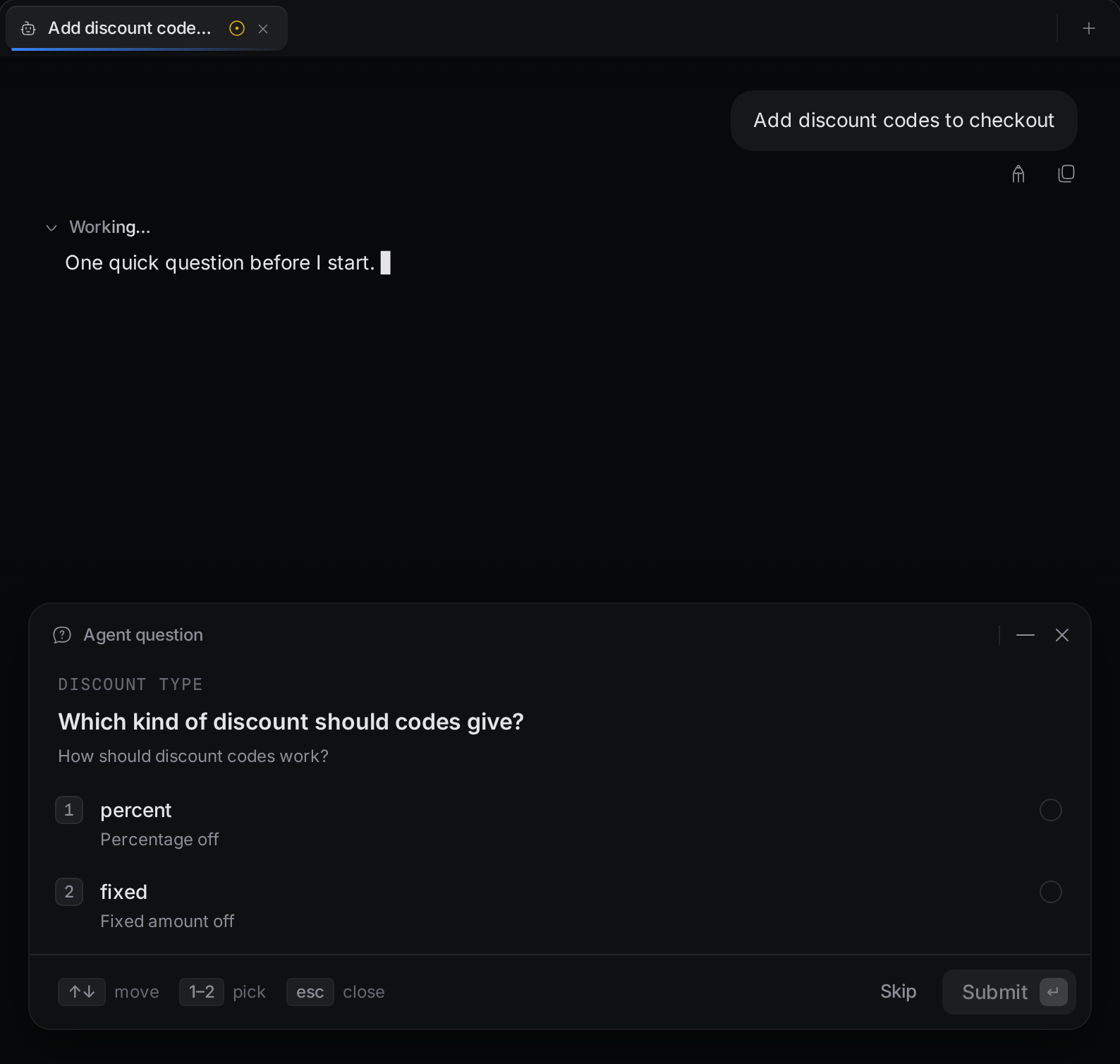
- Click an option, or press its number key.
- To give a different answer, type it in the field at the bottom, when the agent allows one.
- Click Next to go to the next question. On the last one, click Submit. When the agent asks several questions, the button counts your answers, for example Submit 2 answers.
Use the arrow keys to move between options and between questions. Some questions have a Skip button to leave the question unanswered. Press Esc or click the X to cancel all of the questions.
To read the chat while a question is open, click Minimize questions. A bar stays at the bottom of the chat. Click Resume on it to answer.
Some agents send a form instead, under the title Request from the agent. Fill in the fields and click Submit. Click Decline to refuse the request, or Cancel to close it without an answer. A request can also ask you to visit a web page, for example to sign in. Click Open link, finish on that page, then click Done.
Leave a chat while it waits
By default, a request or a question waits until you answer it, you stop the turn, or the chat ends. You can switch to another chat or project and answer later.
In the desktop app, Settings > AI Agents has two time limits for an agent's answer: If an answer goes quiet and Longest one answer. Both are off by default. If you set one, a request that waits longer than that is cancelled with the turn.
A waiting request also keeps the chat open. Termul closes chats that sit idle for a while, but not one that is waiting for you. To change how long idle chats stay open, see Close idle chats after in Settings > AI Agents.
If the chat is open on several devices, the first answer counts.
See which chats need you
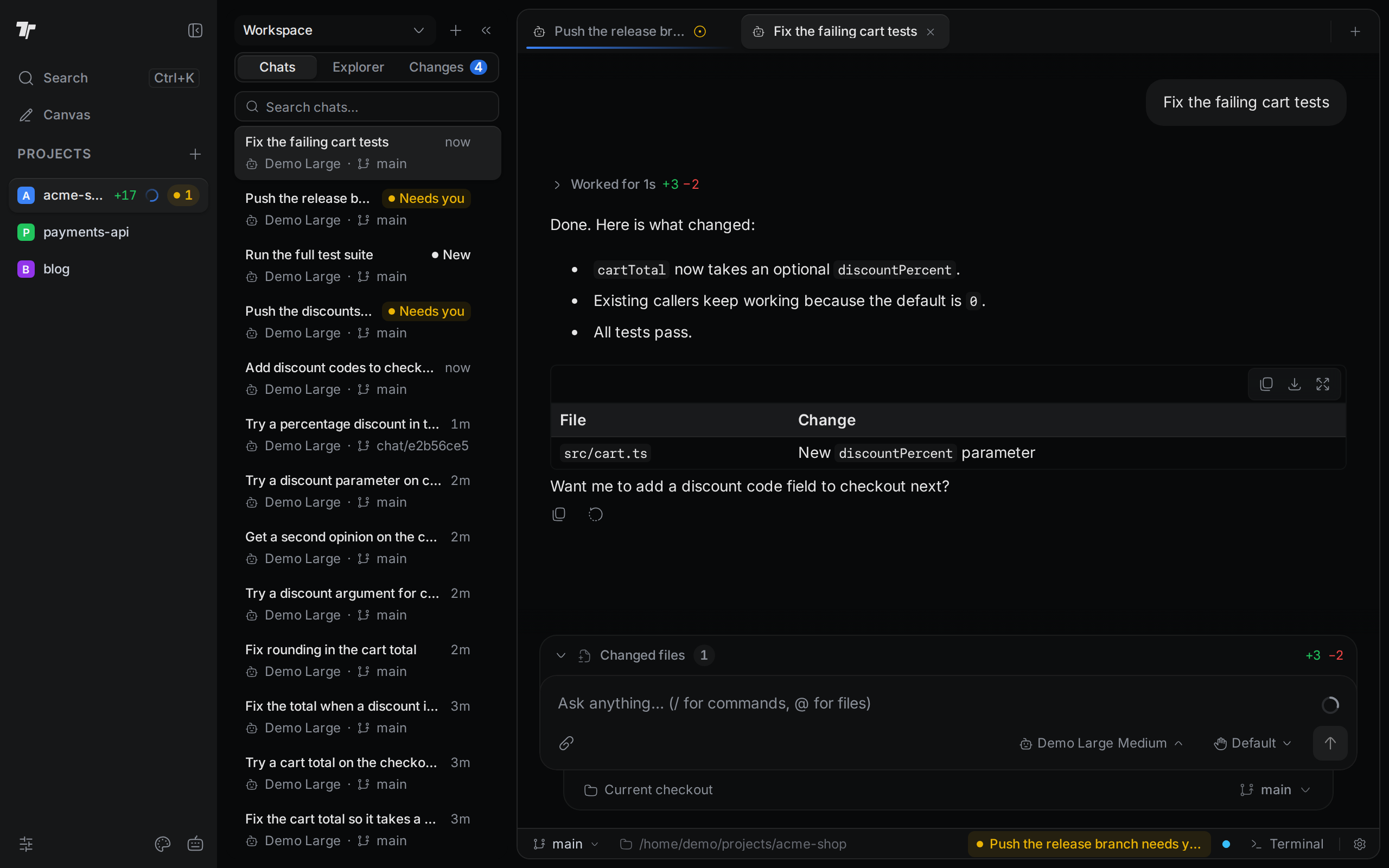
A chat that waits for your approval is marked Needs you. Termul also uses this mark when a chat lost its agent or could not resume. You see the mark in these places:
- A yellow dot on the chat's tab.
- Needs you on the chat's card in the Chats list.
- A yellow count next to the project name. Hover it to read, for example, 1 needs you. Click it to open the chat.
- A pill in the status bar at the bottom of the window, such as "Push the release branch needs you". It shows chats of the active project. Click it to open the chat.
Get notified
Termul can send a notification when a chat needs you, and when an agent finishes its work. In the desktop app, these are system notifications. In a browser, the browser asks for permission the first time.
To turn them on or off, open Settings > Behavior and go to Notifications:
- Notify when an agent chat needs you. Sent when an agent waits for an approval or an answer to a question. Requests that come as a form do not send a notification.
- Notify when an agent chat turn finishes. Sent when the agent finishes and no queued messages are left. Termul does not send it when you stop the turn.
Both are on by default. Termul does not notify you about the chat you are looking at while its window has focus. In a browser, click a notification to open the chat. In the desktop app, clicking it brings the Termul window to the front.