Browse and manage files
Open the explorer, read the git colors, and create, rename, copy, move, or delete files.
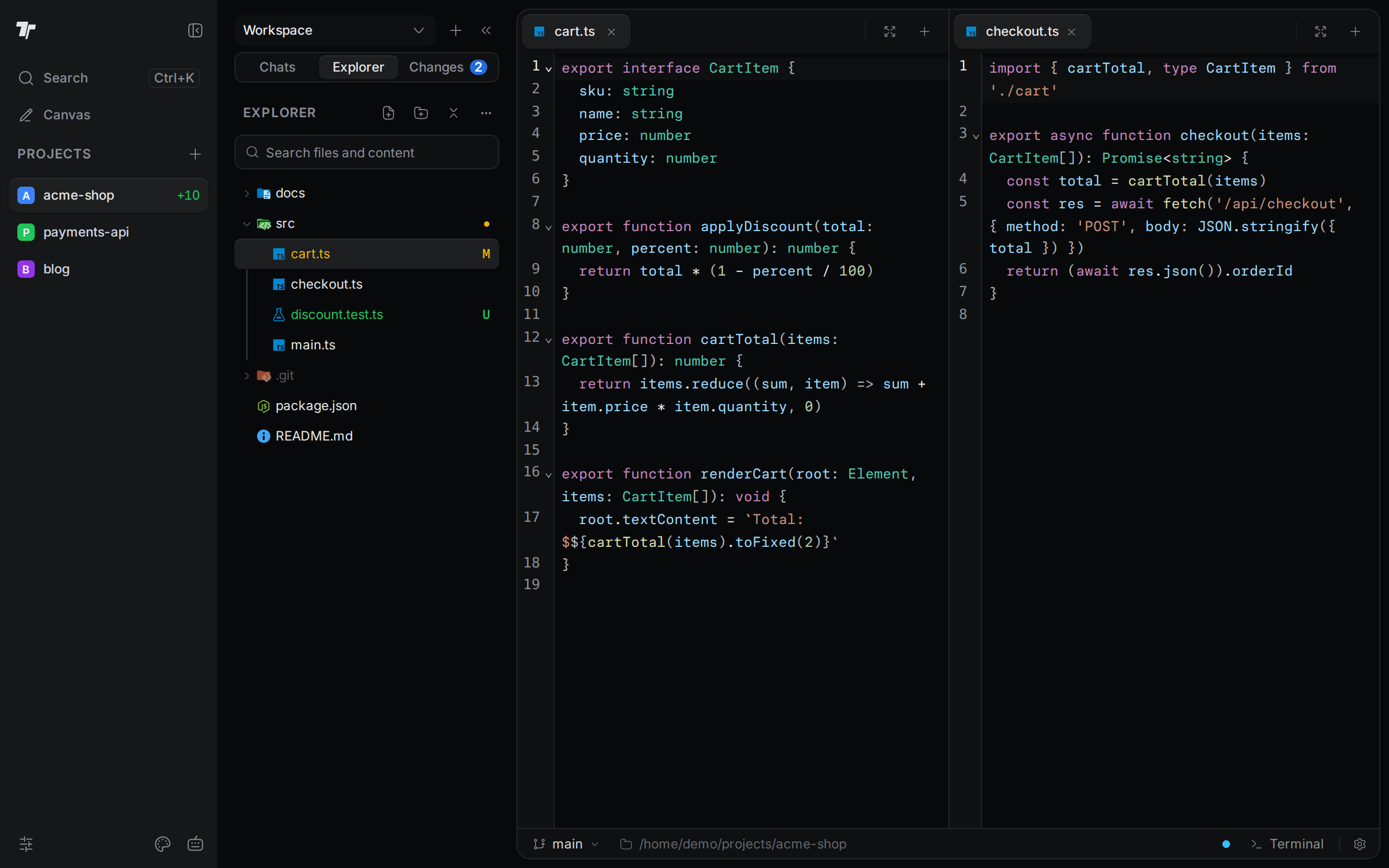
The explorer shows the files of the active project as a tree. Use it to open files, see what you changed since your last commit, and manage files without a terminal.
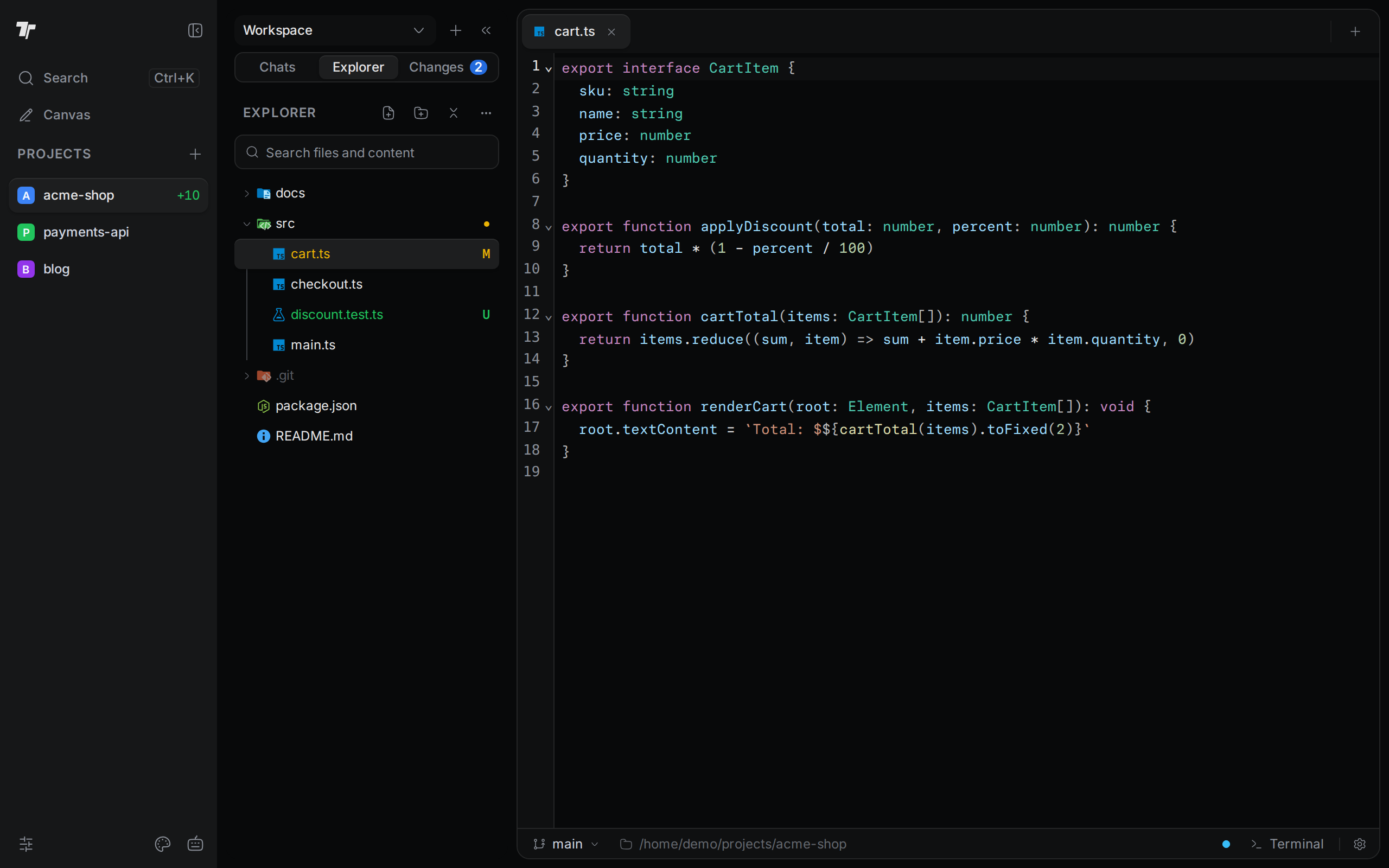
Open the explorer
- Select a project in the Projects list.
- In the side panel, click the Explorer tab.
To show or hide the whole side panel, press Ctrl+B (Cmd+B on macOS). The key does nothing while the cursor is in the editor, a text field, or a terminal. Click an empty part of the app first.
The tree updates by itself when files change on disk. If it looks out of date, click More explorer actions (the ... button) and then Refresh. To close every open folder, click Collapse All.
Open a file
- Click a folder to open or close it.
- Click a file to open it in the editor. If the file is already open, Termul switches to its tab.
Files larger than 1 MB and binary files, such as images, do not open in the editor.
Read the git colors
If the project is a git repository, the explorer marks files that differ from your last commit. The letter at the end of the row says what changed. The colors below are the default theme colors.
| Mark | Color | Meaning |
|---|---|---|
M | Yellow | The file is modified. |
R | Yellow | The file is renamed. |
A | Green | The file is new and staged. |
U | Green | The file is new and git does not track it yet. |
| Dot after a folder name | Yellow | The folder holds at least one changed file. |
Files and folders that your .gitignore excludes are dimmed. Hover over one to see "(git-ignored)" after its name.
To stage and commit these changes, use the Changes tab. See Git.
Select more than one item
Ctrl+click(Cmd+clickon macOS) adds or removes one item.Shift+clickselects every item between the last click and this one.Ctrl+A(Cmd+Aon macOS) selects every visible item.Escclears the selection.
Copy, Cut, Duplicate, and Delete act on the whole selection. The menu shows the count, for example Copy (3).
Use the right-click menu
Right-click a file or folder to open its menu.
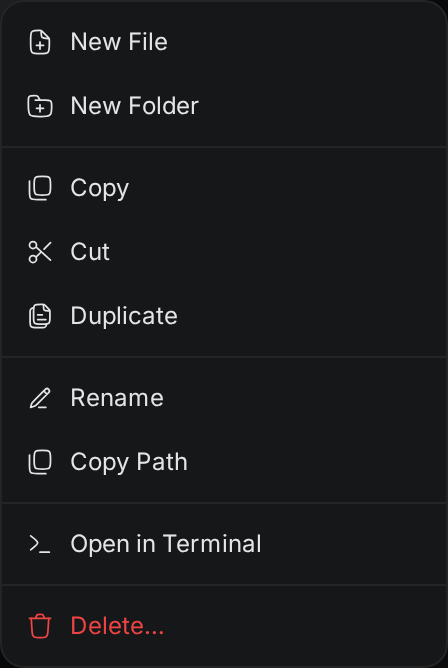
- New File and New Folder create an item inside the folder. These show on folders only.
- Copy and Cut remember the selected items. Paste shows on folders after you copy or cut something. Cut and paste moves the items.
- Duplicate makes a copy next to the original. The copy gets " (copy)" before its extension, for example
cart (copy).ts. - Rename lets you type a new name in the row.
- Copy Path puts the full path of the item on your clipboard.
- Open in Terminal opens a new terminal tab that starts in the folder. This shows on folders only.
- Delete... removes the items after you confirm.
Desktop-only actions
The desktop app adds two items to the menu:
- Open with External App opens the file in the program that your system uses for that file type. This shows on files only.
- Show in File Manager shows the item in Finder, File Explorer, or your Linux file manager.
Create a file or folder
- Right-click the folder that will hold the new item.
- Click New File or New Folder. An empty name field appears in the tree.
- Type the name and press
Enter.
To cancel, press Esc or click somewhere else. A name cannot contain / or \.
You can also use the New File and New Folder buttons at the top of the explorer. They create the item in the selected folder. If a file is selected, they use the folder that holds the file. If nothing is selected, they use the project folder.
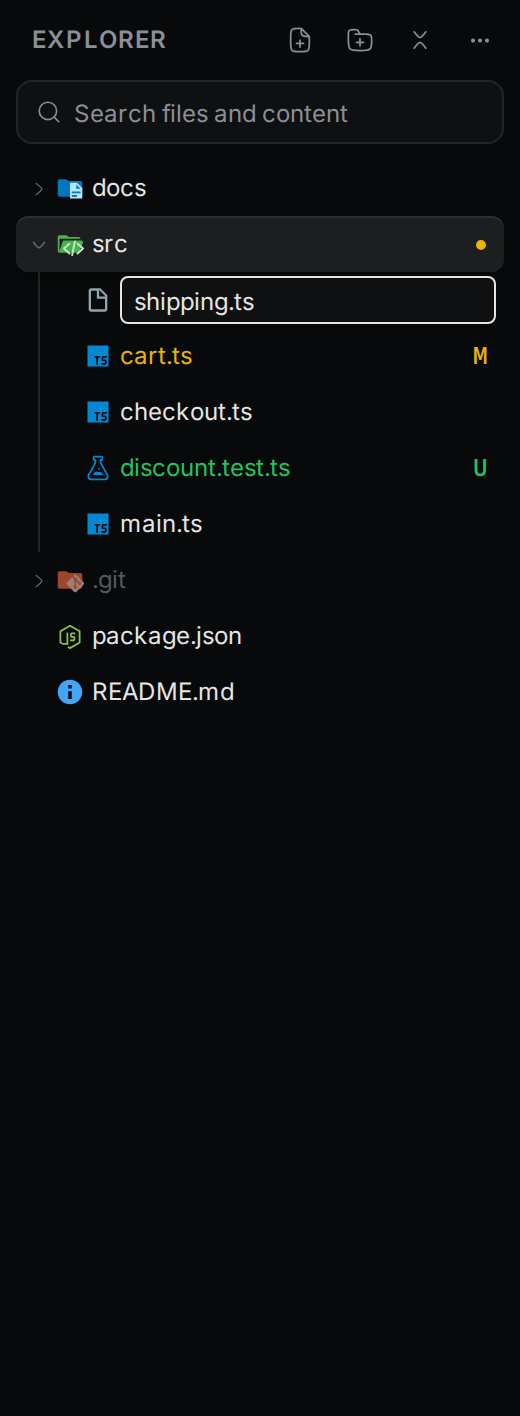
Termul selects the new item in the tree. To edit a new file, click it.
Rename a file or folder
- Select the item and press
F2. You can also right-click it and click Rename. - Type the new name and press
Enter.
If the file is open in the editor, its tab follows the new name and keeps any unsaved changes.
Delete files and folders
- Select the items and press
Delete(Fn+Deleteon a Mac keyboard). You can also right-click and click Delete.... - In the dialog, click Delete.
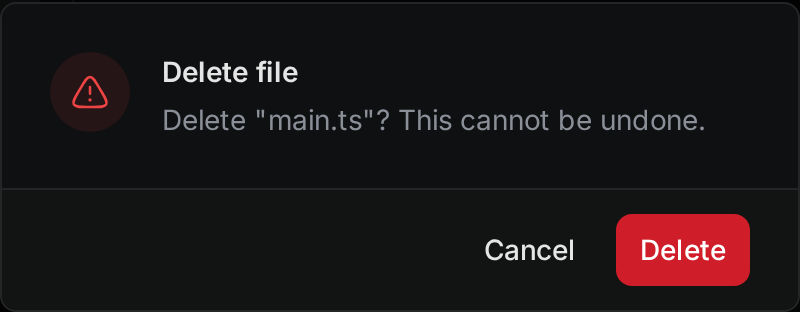
Termul closes the editor tabs of deleted files.
Copy and paste with the keyboard
The keys work while the explorer has focus.
| Key | Action |
|---|---|
Ctrl+C (Cmd+C on macOS) | Copy the selected items. |
Ctrl+X (Cmd+X on macOS) | Cut the selected items. |
Ctrl+V (Cmd+V on macOS) | Paste into the selected folder. If a file is selected, paste into its folder. If nothing is selected, paste into the project folder. |
F2 | Rename the selected item. |
Delete | Delete the selected items. |
Esc | Clear the selection. |
Drag a file into a pane
You can drag a file from the explorer into the workspace to open it in a chosen place.
- Drag a file from the tree over the workspace.
- Drop it in the middle of a pane to open it as a tab in that pane.
- Drop it near the left, right, top, or bottom edge of a pane to split the pane and open the file in the new half.
You can drag files only. Folders do not drag, and you cannot move files between folders by dragging. To move files, use Cut and Paste.