Edit and save code
Open a file in the editor, save it by hand or automatically, and handle changes made outside Termul.
The editor opens your project files in tabs next to your terminals and chats. It colors the code, numbers the lines, and warns you before you lose unsaved work.
Open a file
Click a file in the explorer. The file opens as a tab in the active pane. If the file is already open, Termul switches to its tab. See Browse and manage files.
You can also drag a file from the explorer onto a pane to open it there or to split the pane.
The editor does not open these files:
- Files larger than 1 MB.
- Binary files, such as images and fonts.
You can keep up to 15 files open. When you open one more, Termul closes the oldest tab that has no unsaved changes. If every open file has unsaved changes, Termul shows "Too many open tabs" and does not open the file. Save or close a file first.
Languages
The editor colors the code of these file types:
| Language | File extensions |
|---|---|
| TypeScript and JavaScript | .ts, .tsx, .js, .jsx |
| JSON | .json |
| CSS | .css, .scss |
| HTML | .html, .htm |
| Astro | .astro |
| Markdown | .md |
| Python | .py |
| Rust | .rs |
| YAML | .yaml, .yml |
Other text files open as plain text without colors.
The editor also has:
- Line numbers, and an arrow next to a line number that folds or unfolds a block of code.
Tabto indent the current line or selection.Ctrl+Zto undo andCtrl+Yto redo (Cmd+ZandCmd+Shift+Zon macOS).- Long lines that wrap to fit the pane.
Markdown files open in a different view by default. See Work with Markdown.
Save a file
Press Ctrl+S (Cmd+S on macOS) while the file is open. Termul shows a "saved" message with the file name.
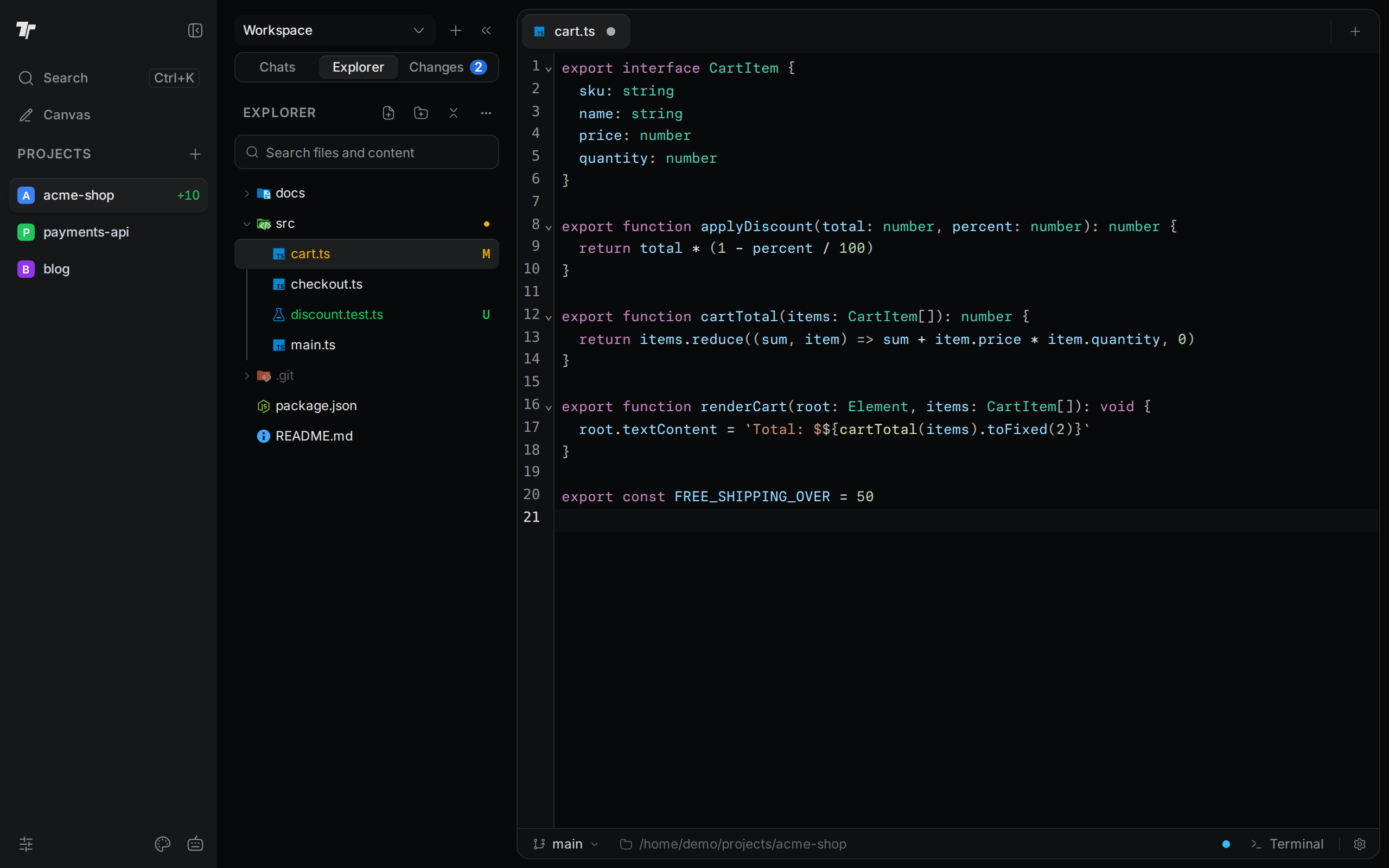
When a file has unsaved changes, its tab shows a dot instead of the close button. Hover over the dot to see the close button again. After a save, the tab shows a check mark for a moment.
On a phone, Markdown files show a Save button in the toolbar above the text.
Close a file that has unsaved changes
If you close a tab that has unsaved changes, Termul asks what to do:
- Save saves the file and closes the tab.
- Discard closes the tab and drops your changes.
- Cancel keeps the tab open.
If you close several tabs at once and some files have unsaved changes, the dialog offers Save & Close and Don't Save.
In the desktop app, Termul also asks when you quit the app with unsaved files. Click Save All to save them, or Don't Save to quit without saving.
Turn on auto save
Auto save writes your changes to disk a short time after you stop typing. It is off by default.
- Open Settings. Press
Ctrl+,(Cmd+,on macOS) in the desktop app, orAlt+,in the browser version. - Go to Behavior.
- Under Editor Auto Save, turn on Enable auto save.
- In Auto Save Delay, choose how long Termul waits after your last edit: 0.5 seconds, 1 second, 2 seconds, or 5 seconds.
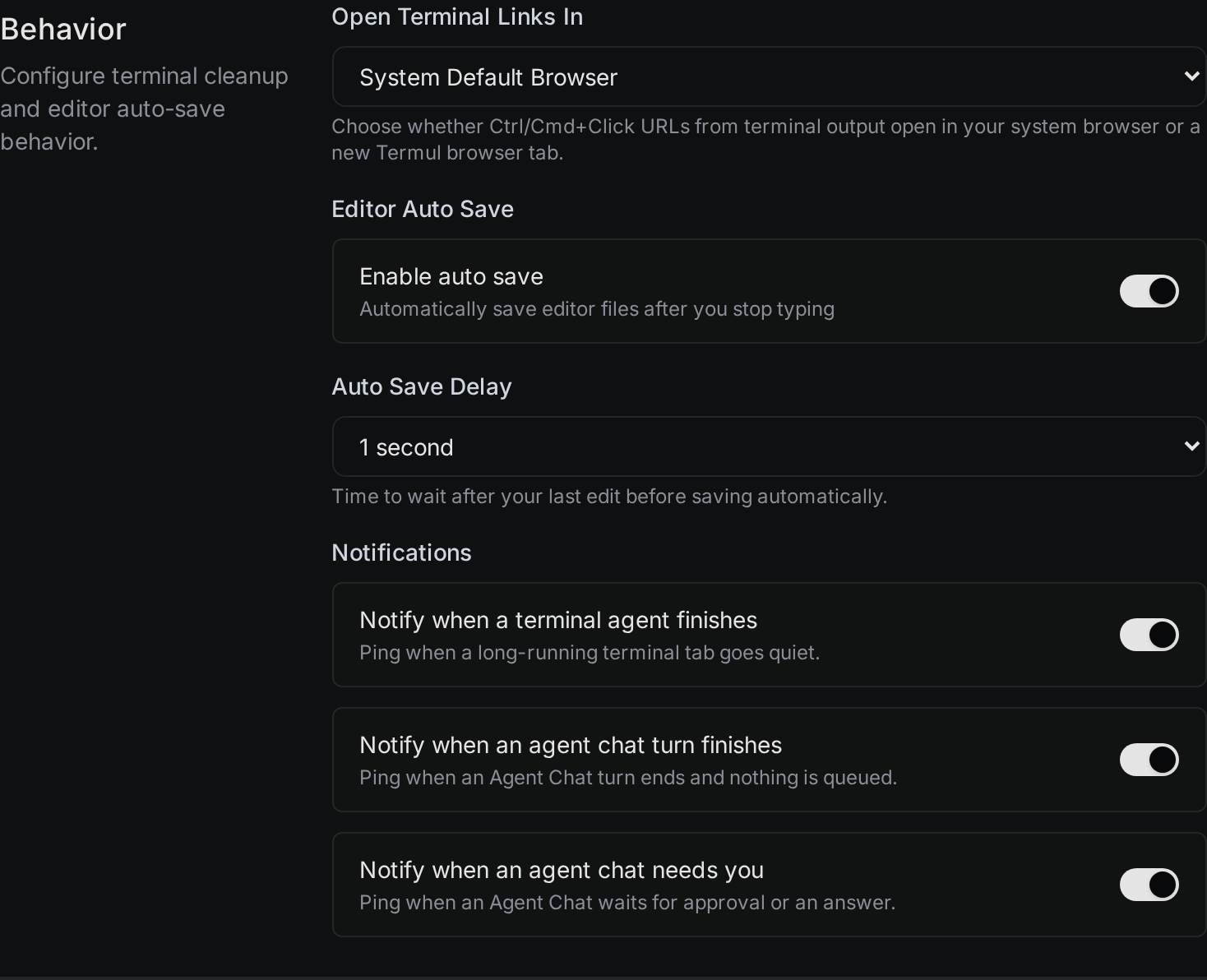
Auto save does not show a message. The unsaved dot on the tab goes away when the save is done.
When a file changes outside Termul
Another program, a terminal command, or an agent can change a file that you have open. Termul watches open files and reacts in one of these ways.
The file has no unsaved changes in Termul. The editor loads the new version from disk. You do not have to do anything.
The file has unsaved changes in Termul. Termul keeps your version in the editor and shows a "File changed externally" message with the file name.
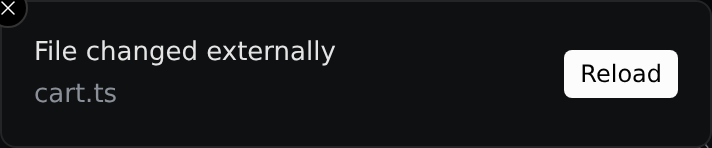
In the browser version, if you save after the file changed on disk, Termul does not overwrite the other version. It shows "File changed externally" again with two buttons:
- Reload drops your changes and loads the version on disk.
- Overwrite saves your version over the version on disk.
In the desktop app, a save writes your version over the version on disk.
The file is deleted. Termul closes its tab. If the file has unsaved changes, the tab stays open and Termul shows "File deleted on disk" with "(unsaved edits kept)".
Get back unsaved changes after a restart
Termul remembers your open tabs and their unsaved changes. When you open the app again, or reload the page in the browser version, the tabs come back with your changes still unsaved.
If the file on disk changed after you made those changes, Termul cannot tell which version you want. It shows a banner above the editor: "An unsaved draft differs from the newer file on disk." The editor shows the version on disk and does not accept typing until you choose.
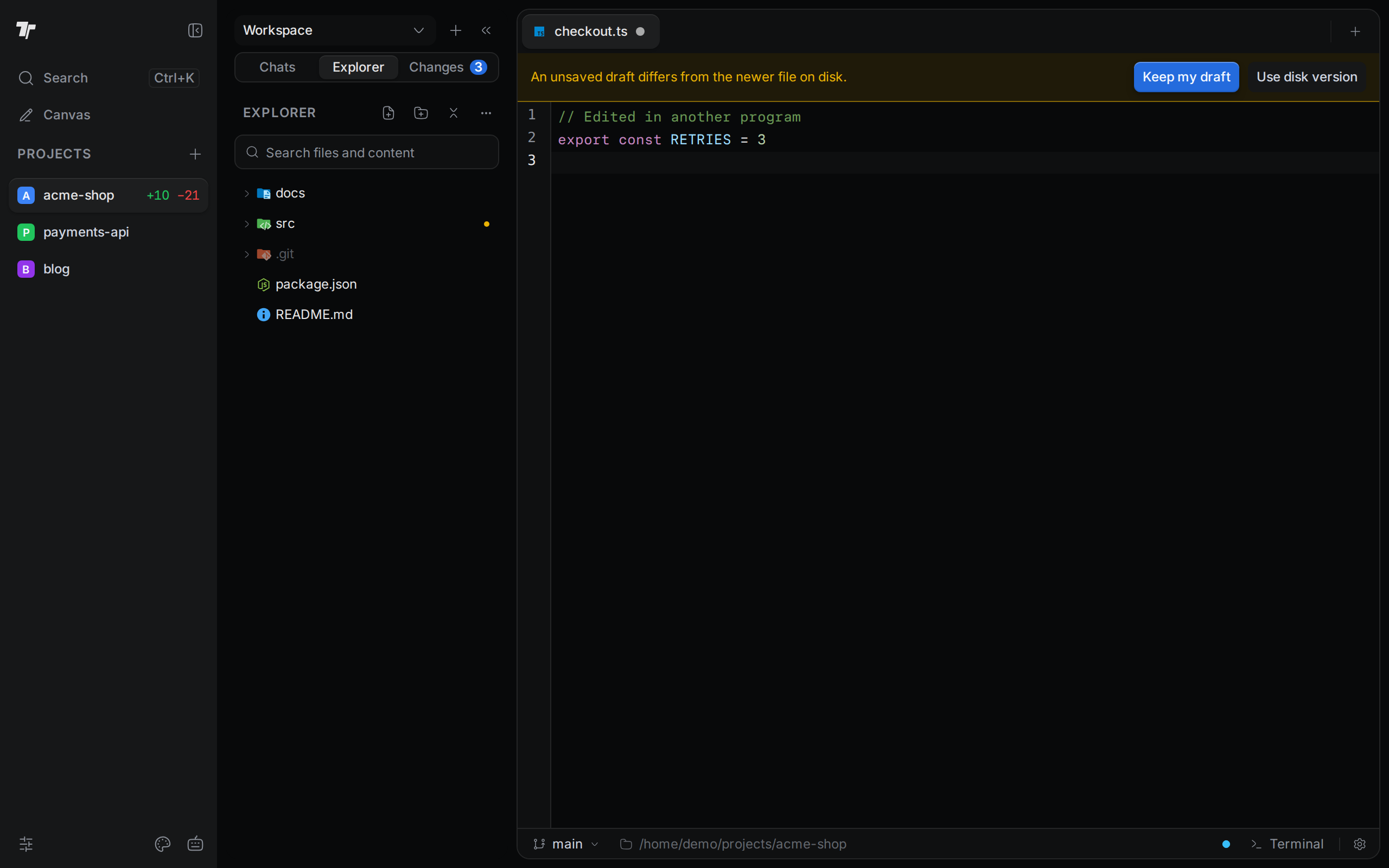
- Keep my draft puts your unsaved changes back in the editor. Save the file to write them to disk.
- Use disk version drops your unsaved changes and keeps the file as it is on disk.