Use Termul in a browser
Open Termul in a web browser, enter the token, and read the connection light.
In a browser, Termul looks and works like the desktop app. Your projects, chats, terminals and files live on the machine that runs the server. The browser shows them and sends what you type.
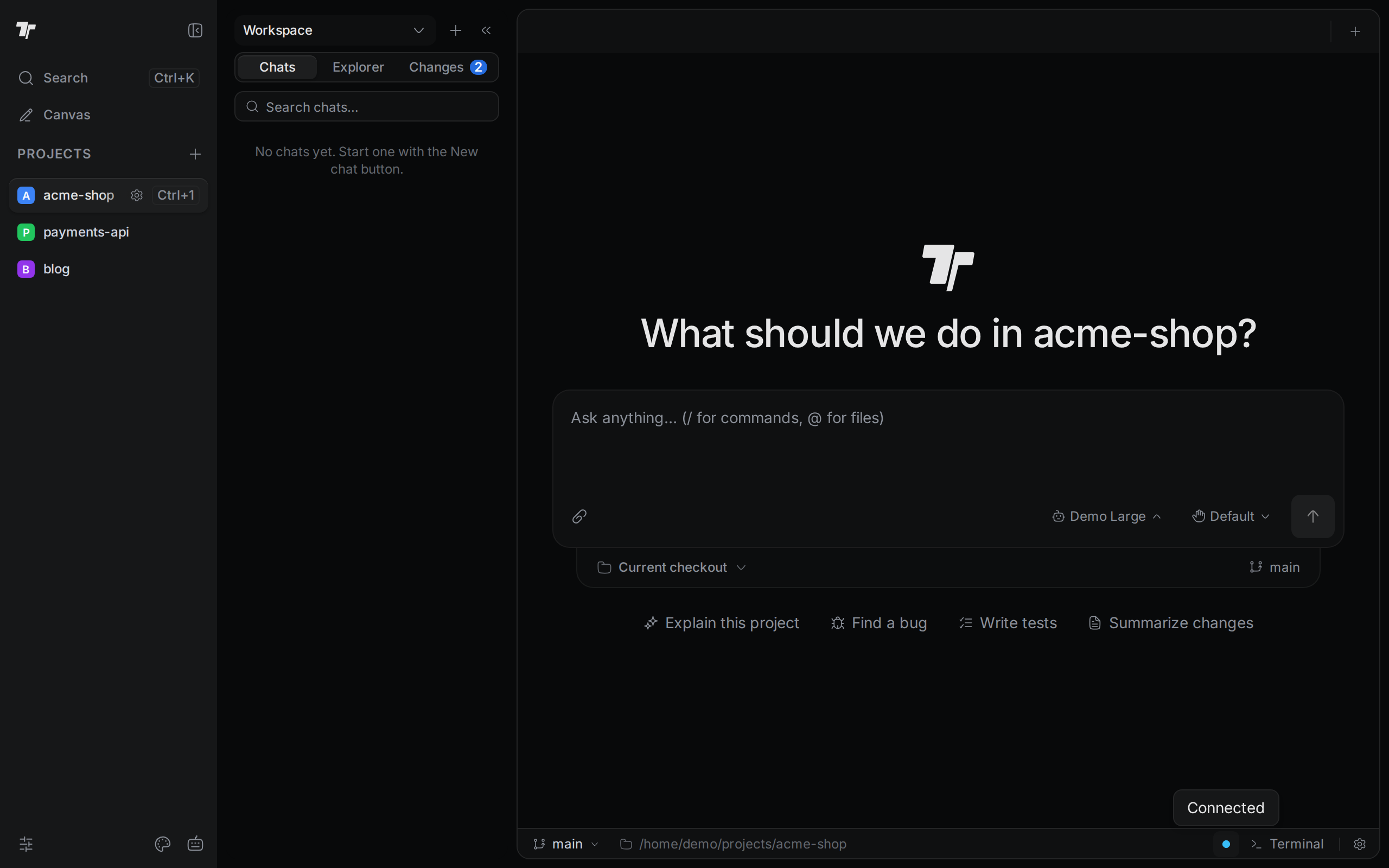
Open Termul the first time
Use the link that has the token in it. It looks like this:
https://termul.example.com/#token=<token>You get this link from the QR code or Copy link when you share your desktop app, or you build it from the server's token file when you run termul-server.
The browser saves the token, so later you can open the address without #token=. The token is saved per browser. A second browser, a private window, or a phone each need the token once.
Enter the token
If you open a server that needs a token and your browser doesn't have it, Termul shows Server access token required.
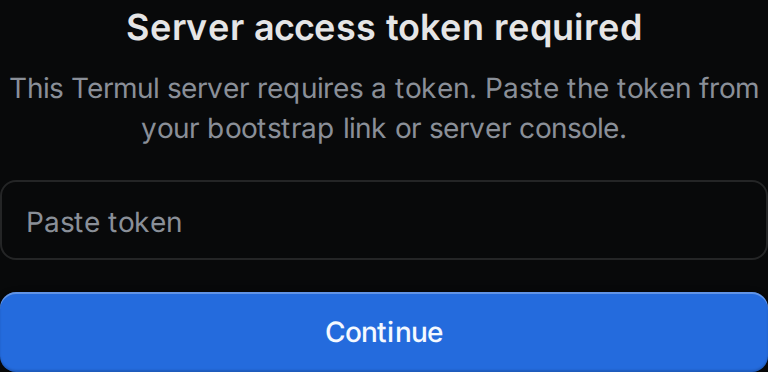
- Paste the token into the field.
- Click Continue.
If the token is wrong, Termul says it is invalid and lets you try again. You also see this screen after someone changes the server's token.
Check the connection
In the browser, the status bar has a small connection light. Point at it to see the state.
- Connected. Everything works.
- Control channel or Terminal channel with a state such as
reconnecting. The browser lost its connection and is trying again. Chats and terminals catch up when it reconnects. Terminals keep what you type and send it when the connection comes back. - Host offline. The server or the shared desktop app stopped on purpose. Termul checks now and then whether it is back. Click the light to try again right away.
An open chat also shows Host offline or Reconnecting… in its top corner.
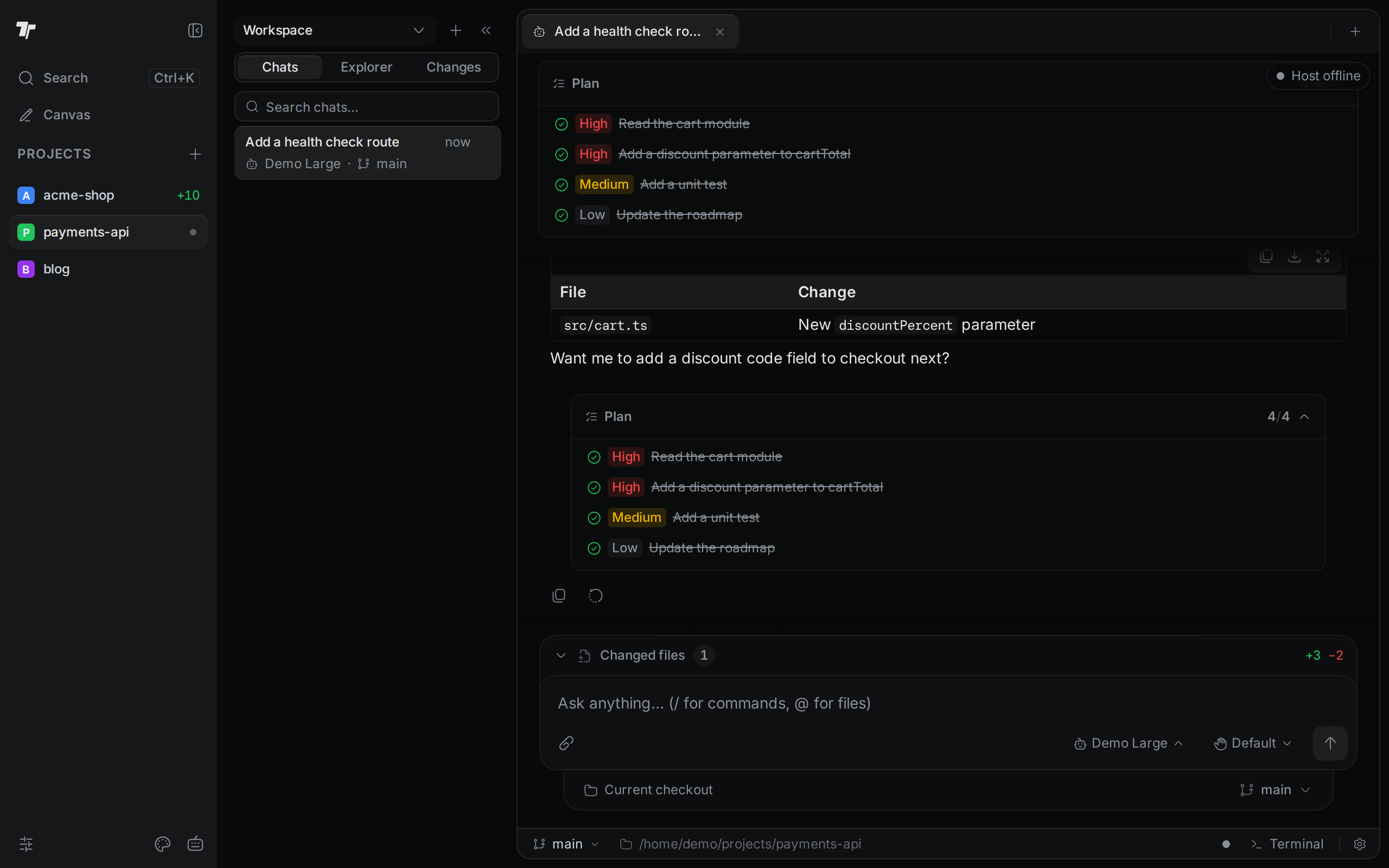
The desktop app has no connection light, because it doesn't connect over the network.
Shortcuts that use Alt in the browser
Browsers keep some Ctrl shortcuts for themselves, such as Ctrl+T for a new browser tab. In the browser version, Termul uses Alt for these instead:
| Action | Desktop app | Browser |
|---|---|---|
| New project | Ctrl+N | Alt+N |
| Agent launcher | Ctrl+T | Alt+T |
| Close tab | Ctrl+W | Alt+W |
| Next tab | Ctrl+PageDown | Alt+PageDown |
| Previous tab | Ctrl+PageUp | Alt+PageUp |
| Zoom in | Ctrl+= | Alt+= |
| Zoom out | Ctrl+- | Alt+- |
| Reset zoom | Ctrl+0 | Alt+0 |
| Settings | Ctrl+, | Alt+, |
| Command history | Ctrl+R | No shortcut, because Ctrl+R reloads the page |
Other shortcuts, such as Ctrl+K for the command palette, are the same in both. You can change any shortcut in Settings under Keyboard Shortcuts.
What the browser version can't do
Some features need the desktop app. In the browser they are missing:
- The built-in web browser tabs. See Browser.
- SSH hosts and SSH sessions in the sidebar. See SSH.
- Open with External App and Show in File Manager in the file tree.
- The Updates settings. A server updates in its own way. See Update the server.
- Sharing with a QR code. The browser can't share itself again.
Some things work differently:
- When you create a project, Browse opens a folder picker that shows the server's folders.
- If the server is view-only for your device, you can watch but not make changes. See Allow changes from other devices.
- On a narrow window or a phone, Termul switches to a phone layout. See Use Termul on a phone.